Platform administration
The server-level controls: accounts, workspaces, server-wide settings, emails and the audit log. Built to keep the server healthy without reading anyone's issues.
One Barynt server can host many workspaces. The platform administration looks after the server as a whole: who has an account, which workspaces exist, and a few rules that apply to all of them. It is meant for the person or small team who runs the server, and it is separate from the workspace settings that team leads use.
Who is a platform administrator?
The first person to sign up on a new server becomes the Platform Admin automatically. They can make others platform administrators (or the more limited Platform Support) in the user list. People with a platform role see an Admin entry in the menu under their name in the sidebar. Everyone else does not see it and cannot open it.
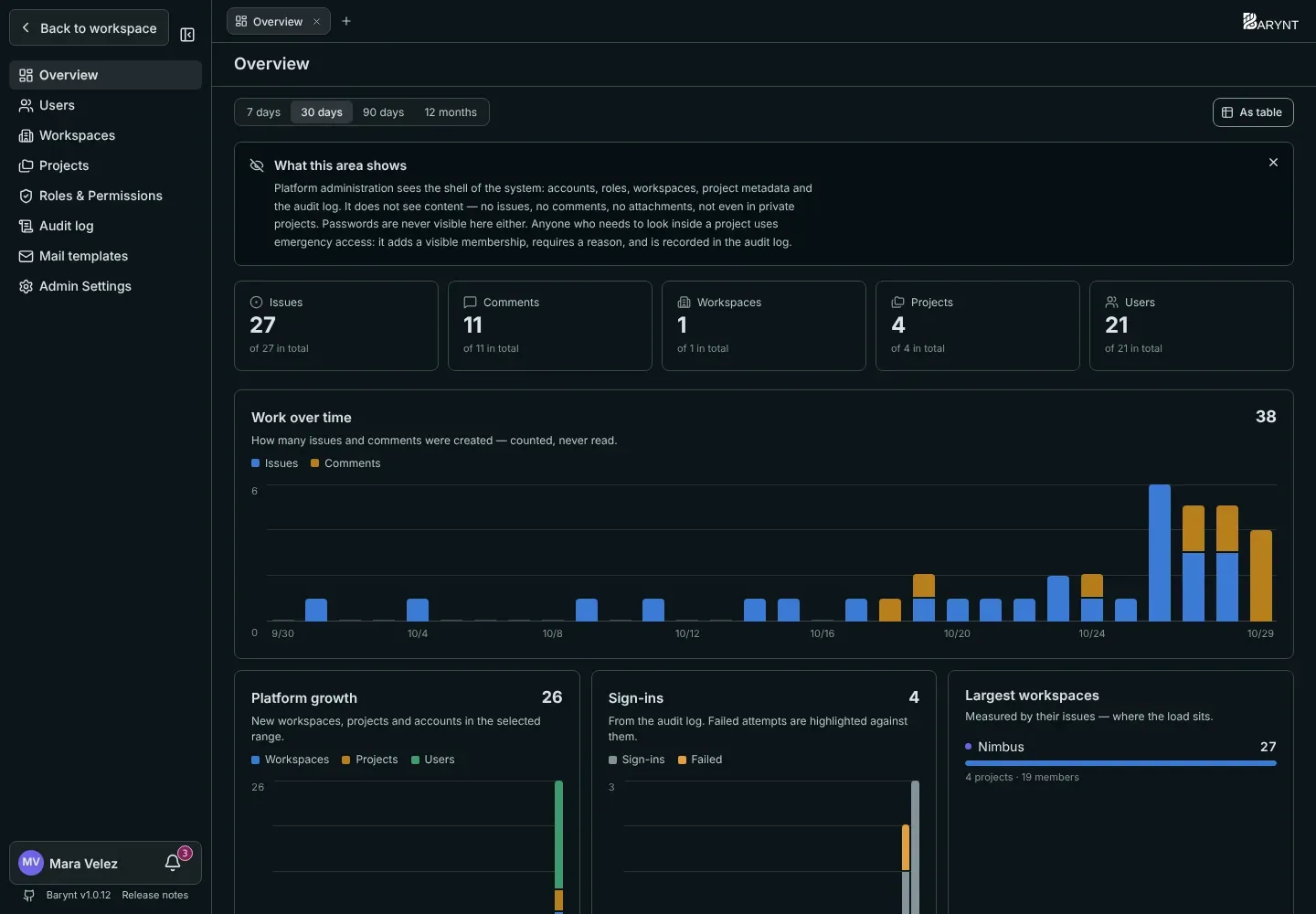
One principle: the shell, not the content
That is deliberate. The person who keeps the server running should not automatically be able to read the company’s confidential plans. Looking into a project takes an emergency access (below), which is visible and logged.
Overview
The first page shows the state of the platform: the totals of issues, comments, workspaces, projects and users, and, for a time range you choose, charts of the work over time (counted, never read), the platform growth, sign-ins with failed attempts highlighted, and the largest workspaces. A Needs attention block points at deactivated accounts, orphaned projects (no owner or no members) and the number of emergency accesses in the last 30 days.
When a newer Barynt version exists, a card above your name says so and links to the release notes. This is the only thing Barynt looks up on its own, and UPDATE_CHECK=false switches it off, see Configuration.
Users
Every account on the server, across all workspaces: name, email, platform role, how they sign in (Passkey or Provider), in how many workspaces they are, and when they were last seen.
- Change the platform role with the dropdown on the row.
- Deactivate an account when a person leaves. They can no longer sign in and hold no permissions anywhere. Nothing is deleted: their issues, comments and assignments stay as they were. You can reactivate the account at any time.
Workspaces
All workspaces with owner, number of members and projects, issues and last activity.
- Suspend locks a workspace: its members lose access, but nothing is deleted. Un-suspend it and everything is back. Use it for a billing pause or while you investigate.
- Delete removes a workspace and everything in it for good. A workspace must be suspended first, and you have to type its name to confirm. There is no way back, so take a backup first.
Projects
Every project on the server, private ones included: owner, members, issues, created. You see the metadata, never the content.
- Reassign gives a project a new owner, useful when the old one has left.
- Archive and Restore retire a project without deleting it.
- Emergency access adds you to a project you were never invited to, for example because its leads are unreachable and something urgent has to change. You must enter a reason (at least ten characters). You then appear in the project’s member list, visible to everyone working there, and the reason, the time and your name go into the audit log for good. To give the access up, remove yourself from the member list.
Roles and permissions
The three platform roles, see Roles and permissions.
Audit log
Server-wide events: sign-ins and failures, platform role changes, account deactivations, emergency access, workspace suspensions and deletions, changes to settings and mail templates. See Audit log and activity.
Mail templates
Adjust subject, heading and intro of every email Barynt sends, with a live preview and a test button. See Email.
Admin settings
Two rules for the whole server:
- Allow workspace creation. When switched off, nobody can start a new workspace. People without a workspace are added to the default workspace instead, which you pick in the second setting. This is the right setup for a company with one workspace, where everybody should land in the same place.
- Default workspace. Where accounts without a workspace end up once creation is off. Until you choose one, creation stays effectively on.