Account and personal settings
Your name, how you sign in, how Barynt looks, where clicks take you and what reaches your inbox. All of it is yours alone.
Everything on this page applies to you only. It is saved to your account, so it follows you to every device and browser.
To open it, click your name at the bottom of the sidebar and choose Settings. The Personal tab on top is this area. The other two tabs, Project and Workspace, are for project and workspace settings.
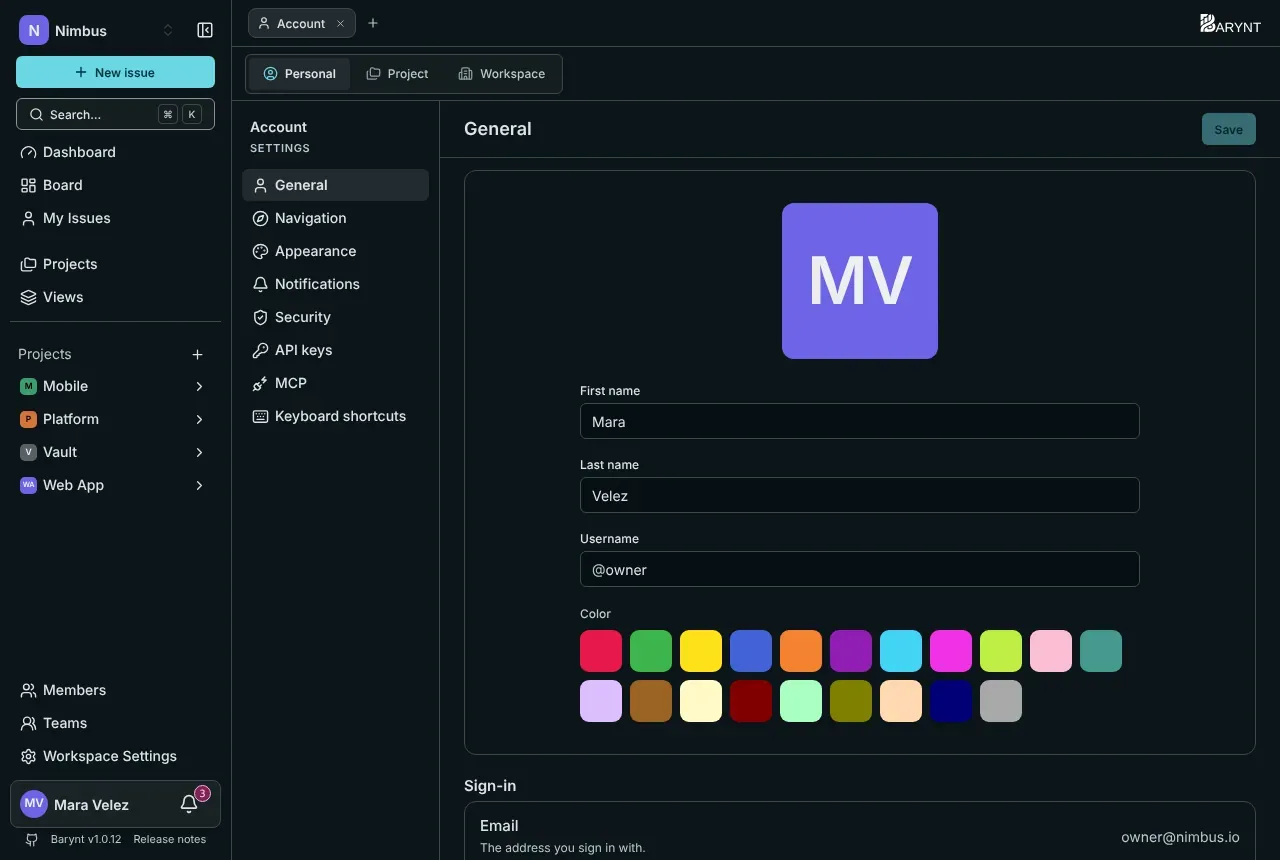
General
- Picture, first name, last name are how colleagues see you. If no picture is set, you get your initials on a color of your choice.
- Username is your short handle for
@mentionsand for filter addresses like?assignee=@mara. It is unique and may contain lowercase letters, digits and hyphens. - Sign-in shows the email address you sign in with.
Appearance
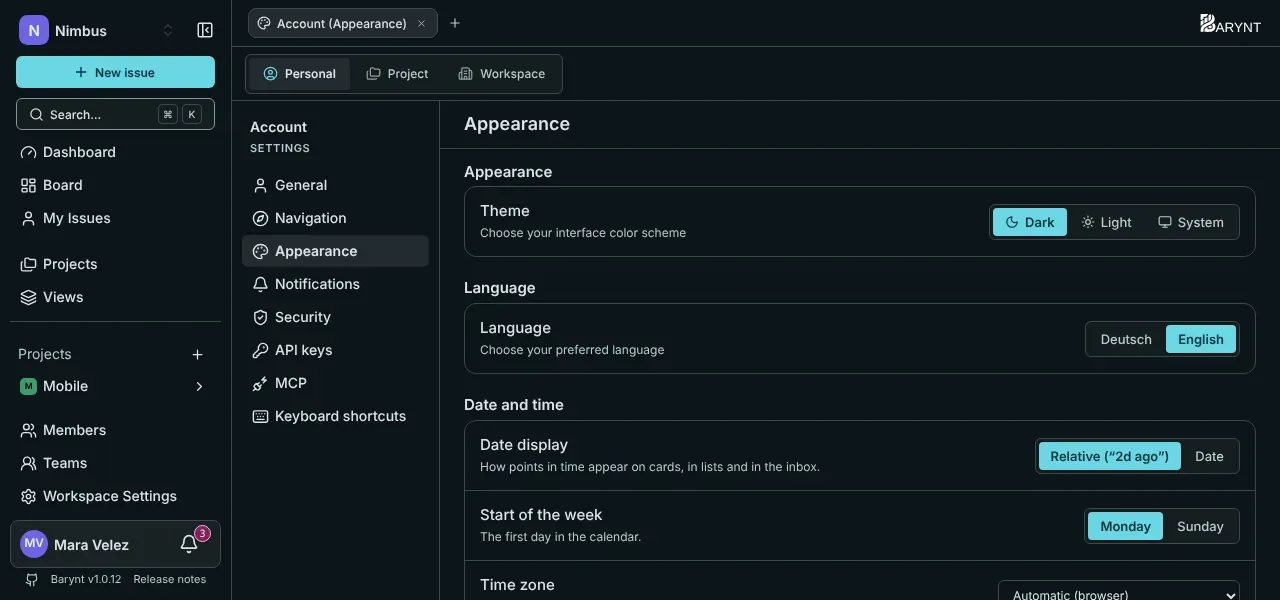
- Theme: dark, light, or System, which follows your computer.
- Language: English or German. It applies to the whole interface.
- Date display: relative (“2d ago”) or the actual date, on cards, in lists and in the inbox.
- Start of the week: Monday or Sunday, for calendars.
- Time zone: automatic from your browser, or one you choose.
Navigation
Where clicks take you, where you start, and how issues open.
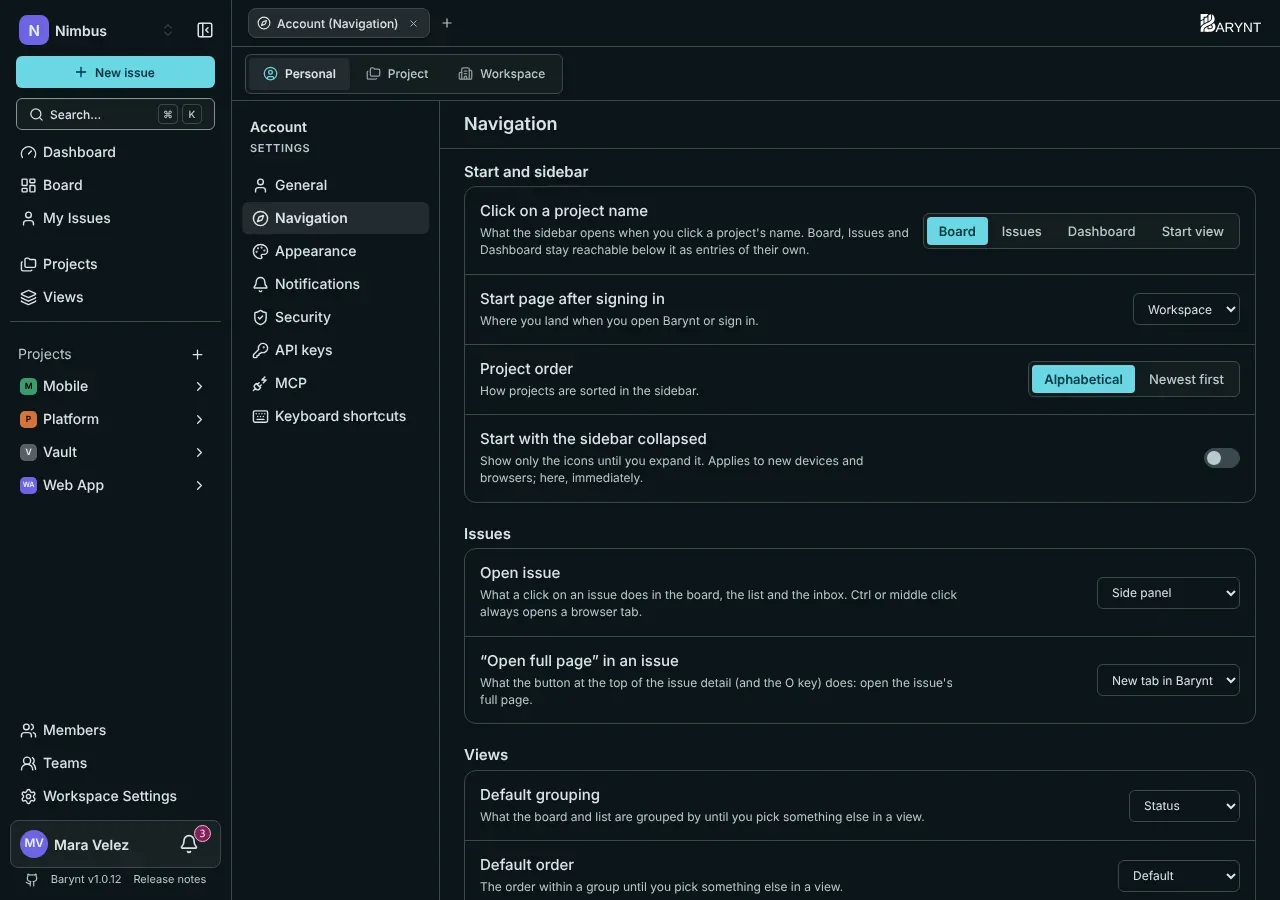
| Setting | What it decides |
|---|---|
| Click on a project name | Whether the sidebar opens the Board, the Issues list, the Dashboard or your own Start view. |
| Start page after signing in | Where you land: the Workspace overview, My issues, the Inbox, the Dashboard or a view of your choice. |
| Project order | Alphabetical or newest first. |
| Start with the sidebar collapsed | Only icons until you expand it. |
| Open issue | What a click on an issue does: open a side panel, an own page, a new tab in Barynt or a new browser tab. |
| “Open full page” in an issue | What the button at the top of an issue (and the O key) does. |
| Default grouping, default order | What boards and lists use until you choose something else in a view. |
| Show sub-issues on the board | The default for views where you have not decided yet. |
Holding Ctrl (or ⌘) while clicking, or a middle click, always opens a browser tab.
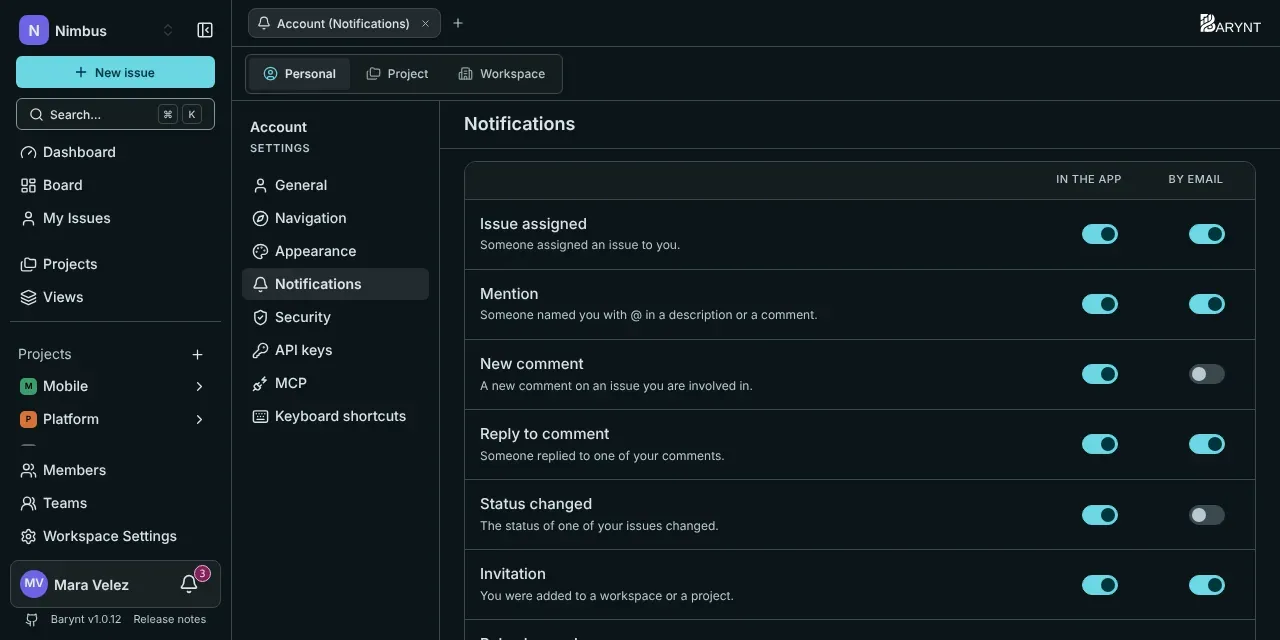
Notifications
For each event, choose whether you want it in the app, by email, both or neither. The details are in My issues, inbox and notifications.
Security
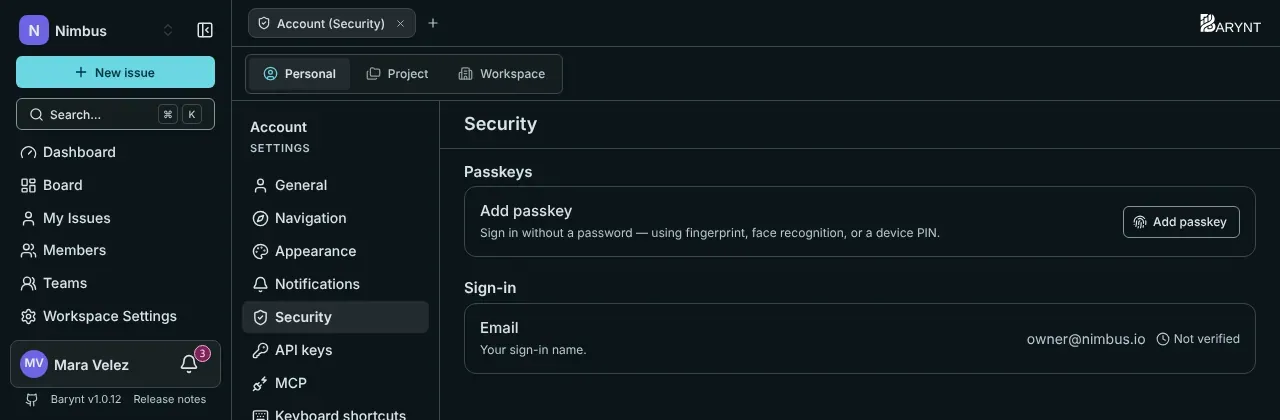
- Passkeys let you sign in with your fingerprint, your face or a device PIN, no password involved. Click Add passkey on each device you use. A passkey that syncs through your password manager or cloud account (iCloud Keychain, Google Password Manager, 1Password) is marked as synced.
- Email is your sign-in name. A verified address also unlocks sign-in links, invitations and email notifications, and it is your way back in if you ever lose your passkey. Add one.
- Connected accounts (if your administrator enabled company logins) lists the providers you can sign in with. If you have a passkey, you can disconnect them any time. Without one, the last connected account cannot be removed, because it would lock you out.
API keys and MCP
Two sections are for connecting other tools. They are covered in the integrations chapter: REST API for personal API keys, and MCP server for connecting an AI assistant.
Keyboard shortcuts
See and change them in the Shortcuts section, and switch on or off Ask before deleting. See Search and keyboard shortcuts.