REST API: authentication and basics
Connect scripts, reports and other tools to Barynt: API keys and scopes, how requests and answers look, errors, limits, paging, plus a quick start and recipes.
The REST API lets other software read and change what is in Barynt: create an issue when a customer submits a form, pull numbers into a report, keep a spreadsheet in sync. It is the same data and the same rules as in the app.
This page explains how it works in general: keys, scopes, what requests and answers look like, errors, limits and paging. Every single call, with all fields and examples, is in the API reference. If you are not a developer, read the first two sections and hand the rest to someone who is.
What it is good for
- Create issues automatically, from a support form, a monitoring alert or a chat command.
- Reports and dashboards outside Barynt: export open issues, count closed ones per week.
- Sync with other systems: CRM, spreadsheets, a company portal.
- Scripts and CI: comment on an issue when a deployment finishes.
For AI assistants, use MCP instead: it needs no key. To be told when something happens, use webhooks.
API keys
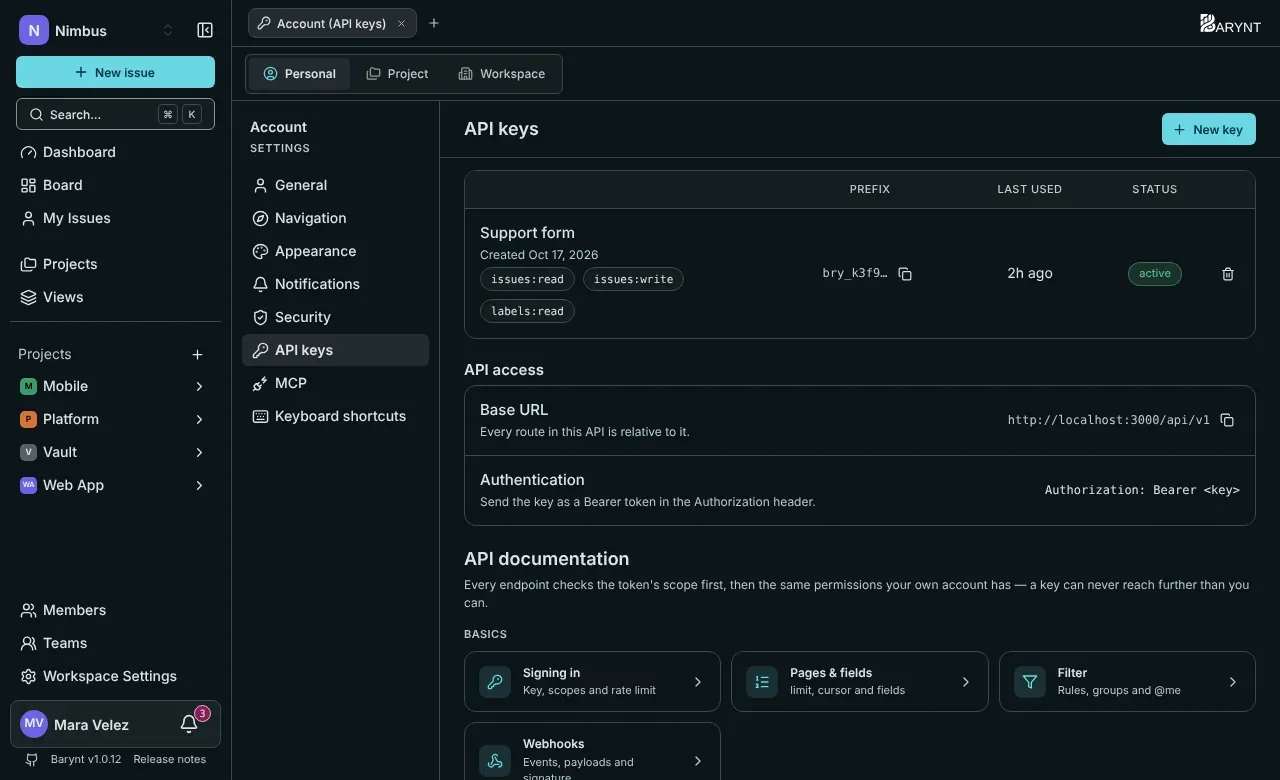
An API key is a personal access token. It acts as you, so it can never do more than you can, and you can narrow it further with scopes.
- Open your personal settings → API keys and click New key.
- Give it a name that says what it is for (“Support form”), choose an expiry (never, or a number of days) and tick the scopes it needs.
- Click Create key. Barynt shows the key once. Copy it now, because it cannot be shown again.
- Give it to whoever needs it, through a safe channel, never in a chat or an email.
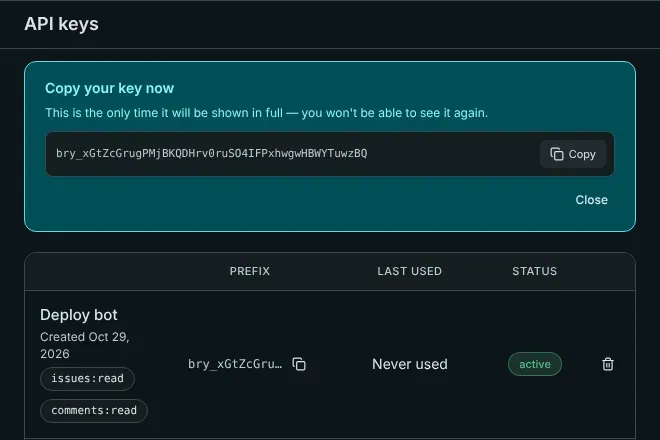
A key starts with bry_. Barynt stores only a fingerprint of it, so even an administrator cannot read it back. The list shows each key’s prefix, when it was created, when it was last used (updated at most every five minutes) and whether it is active. Revoke a key at any moment: every tool that uses it loses access immediately, and this cannot be undone. A key also stops working when it expires or when its owner’s account is deactivated.
Scopes
A scope is a pair of “what” and “read or write”. A call needs the right scope and the permission that its owner has in the app: a scope never grants more than you have, it only narrows what the key may do.
| Scope | Allows |
|---|---|
issues:read / issues:write | Read issues, relations and attachments. Create, change and move issues, add or remove relations and attachments. |
comments:read / comments:write | Read and write comments. |
labels:read / labels:write | Read, create, change and delete labels. |
projects:read / projects:write | Read projects. Create, change and delete them. |
workspaces:read / workspaces:write | Read the workspaces, statuses, priorities and types. Create, change and delete workspaces. |
members:read | Read the members of workspaces and projects. There is no write scope: adding people is done in the app. |
views:read / views:write | Read and manage saved views. A view’s issues also need issues:read. |
Each call in the reference names the scope it needs. A few typical sets:
| For | Scopes |
|---|---|
| A form that creates issues | issues:write (and projects:read to look up the project) |
| A read-only report | issues:read, projects:read, workspaces:read |
| A deploy script that comments | comments:write |
| A full sync | all read scopes, plus the write scopes of the things you change |
Quick start
All you need is your server’s address and a key. Set them once:
export BARYNT_URL="https://issues.example.com"export BARYNT_API_KEY="bry_…"1. Who am I, where can I work? List your workspaces. A workspace’s id is its short name in the address (acme in /acme/…):
curl "$BARYNT_URL/api/v1/workspaces" -H "Authorization: Bearer $BARYNT_API_KEY"{ "data": [{ "id": "acme", "name": "Acme Inc", "color": "#6e63e6", "avatarUrl": null }] }2. Find the project:
curl "$BARYNT_URL/api/v1/workspaces/acme/projects" -H "Authorization: Bearer $BARYNT_API_KEY"Take the id of the project you want, for example proj_9f8e7d.
3. Create an issue:
curl -X POST "$BARYNT_URL/api/v1/projects/proj_9f8e7d/issues" \ -H "Authorization: Bearer $BARYNT_API_KEY" \ -H "Content-Type: application/json" \ -d '{ "title": "Fix broken checkout", "priority": 2, "type": "bug" }'The answer is the new issue, status 201 Created. You are its reporter, and it is marked as created through the API.
4. Comment on it (use the issue’s id or its reference such as WEB-42):
curl -X POST "$BARYNT_URL/api/v1/issues/WEB-42/comments" \ -H "Authorization: Bearer $BARYNT_API_KEY" \ -H "Content-Type: application/json" \ -d '{ "body": "Reproduced on Safari 17." }'That is the whole idea; everything else works the same way. The same thing in JavaScript:
const res = await fetch(`${process.env.BARYNT_URL}/api/v1/projects/proj_9f8e7d/issues`, { method: "POST", headers: { Authorization: `Bearer ${process.env.BARYNT_API_KEY}`, "Content-Type": "application/json", }, body: JSON.stringify({ title: "Fix broken checkout", priority: 2 }),});if (!res.ok) throw new Error(`Barynt answered ${res.status}`);const { data: issue } = await res.json();console.log(issue.ref); // "WEB-42"How requests and answers look
- Address: your server, then
/api/v1/…. Everything is JSON over HTTPS. SendContent-Type: application/jsonwith a body. - Authentication: the header
Authorization: Bearer bry_…on every request. There are no cookies and no sessions. - Success: the answer is always
{ "data": … }. Creating returns201, everything else200. Deleting returns the id of what was removed. - Ids: every object has an
id. A workspace’s id is its short name (acme). Issues can also be addressed by their reference, such asWEB-42, wherever a call takes an issue’s id. - Dates are ISO 8601 in UTC, for example
2026-03-04T15:40:00.000Z. A due date is sent as an ISO 8601 date such as2026-03-10. - Changing things:
PATCHtakes only the fields you want to change. Everything you leave out stays as it is. - Descriptions and comments are written in Markdown. Barynt converts them on the server and understands the same shortcuts as the editor:
@handlementions a workspace member (and notifies them),#WEB-12links another issue,//2026-08-14becomes a date,[label|https://…]a link. Reading gives you the Markdown back.
Lists, pages and fields
- Lists that can grow long come newest first and in pages: a project’s issues and a view’s issues. Ask for up to
limititems (1 to 100, default 25). If there is more, the answer has anextCursor. Send it back ascursorto get the next page;nextCursor: nullmeans you have seen everything. The cursor is opaque, pass it on as it is. - Add
fields=id,title,statusto receive only the fields you need.idis always included. - Issue lists can be filtered with
status,assignee, a text searchq, or a full filter as JSON with the same rules as the filters in the app, including@me. See Filters.
// Walk through all issues of a projectlet cursor = null;do { const url = new URL(`${BASE}/api/v1/projects/proj_9f8e7d/issues`); url.searchParams.set("limit", "100"); if (cursor) url.searchParams.set("cursor", cursor); const res = await fetch(url, { headers: { Authorization: `Bearer ${KEY}` } }); const { data, nextCursor } = await res.json(); // … use data … cursor = nextCursor;} while (cursor);Errors
Errors carry the matching HTTP status and, mostly, a short machine-readable code:
{ "error": { "code": "insufficient_scope" } }| Status | Code | Meaning |
|---|---|---|
| 401 | unauthorized | The key is missing, wrong, revoked or expired, or its owner is deactivated. |
| 403 | insufficient_scope | The key lacks the scope this call needs. |
| 403 | forbidden | You may see the thing, but not change it (for example a shared view someone else made). |
| 403 | workspace_creation_disabled | The administrator has turned off creating workspaces. |
| 404 | none (the body is null) | It does not exist, or you may not see it. Barynt does not say which, on purpose. |
| 422 | invalid_body | The request body is missing, not JSON, or a field is wrong. |
| 422 | invalid_filter | The filter parameter is not a valid filter. |
| 422 | a specific code | Some calls say why, with a message: attachments use invalid_source, invalid_url, invalid_name, invalid_content, too_large and upload_rejected. |
| 429 | rate_limited | Too many requests, see below. |
A 5xx answer means something went wrong on the server: try again later, and look at the troubleshooting page if it stays.
Limits
Each key may make 120 requests per minute. Every answer says where you stand:
| Header | Meaning |
|---|---|
X-RateLimit-Limit | The budget per minute: 120. |
X-RateLimit-Remaining | What is left of it. |
X-RateLimit-Reset | When it refills, in milliseconds since 1970. |
Retry-After | Only on 429: how many seconds to wait. |
The counters live in Redis, see Configuration. Requests that are rejected still count, so a client that ignores 429 does not get free retries. A polite client waits for Retry-After and fetches pages with limit=100 instead of many small calls.
Recipes
Create an issue from a form
Use a key with issues:write of a dedicated “Support bot” account. Look the project’s id up once and store it in your configuration. Put the customer’s message into description. Use a label to mark where it came from, and the issue’s id in your own system to link back.
Export open issues every night
# All issues of a project that are not done, 100 per pagecurl -G "$BARYNT_URL/api/v1/projects/$PROJECT_ID/issues" \ -H "Authorization: Bearer $BARYNT_API_KEY" \ --data-urlencode 'limit=100' \ --data-urlencode 'fields=ref,title,status,assignee' \ --data-urlencode 'filter={"op":"and","rules":[{"field":"statusCategory","is":"none","value":["completed","canceled"]}]}'Repeat with cursor= until nextCursor is null.
Attach a file
Up to 10 MB, send the file inline as base64. Anything larger (up to 100 MB) is uploaded in two steps: ask for an upload address, PUT the file there, then create the attachment with the key you received. See Attachments.
Be told instead of asking
Polling for changes wastes your budget. A webhook tells you when an issue or comment changes.
Good to know
- Nothing the API does skips permissions. A key of a Viewer cannot write, even with a write scope.
- Changes made through the API show up in the activity of the issue and in notifications, just like changes made in the app, and they trigger webhooks.
- The in-app reference is in the same place as your keys, on the API keys page, and always matches the version you run. This documentation is built from the same data.
- The same keys work for the MCP server, with the same scopes and the same budget.
Next
- The API reference, one page per area
- Filters
- Webhooks and webhook events