Teams
Group people who work together, link the group to projects, and give them access in one step instead of person by person.
A team is a named group of workspace members, for example “Mobile team” or “Customer support”. It does two jobs: it shows at a glance who works on what, and it lets you give access to a whole group at once.
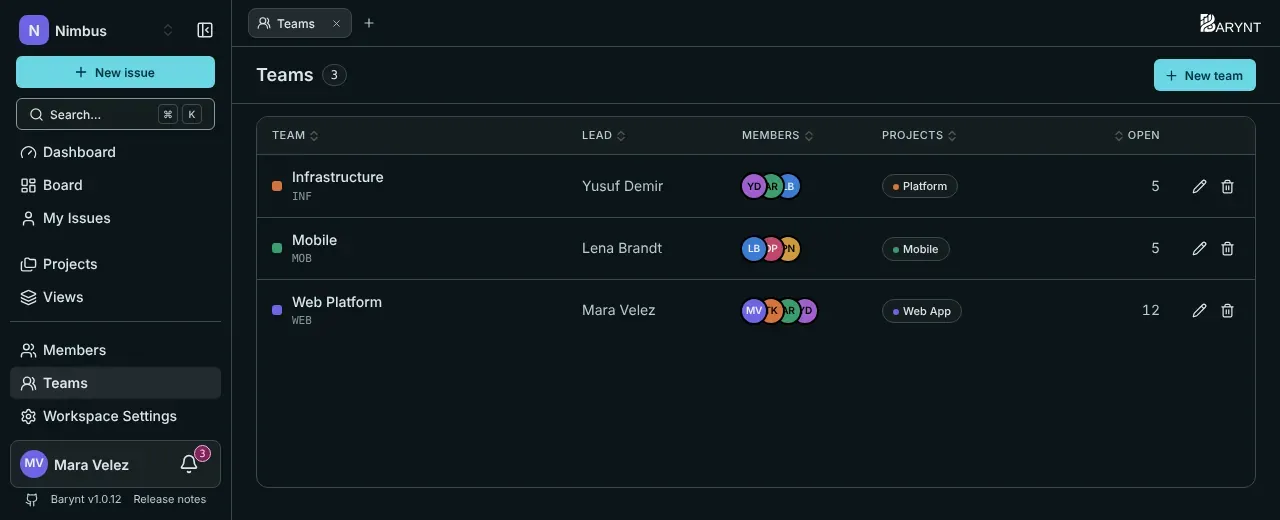
The team list
Open Teams in the sidebar. For each team you see its color, name and identifier, its lead, its members, the projects it is linked to, and how many issues are open in those projects. The pencil edits a team, the bin deletes it.
Creating a team
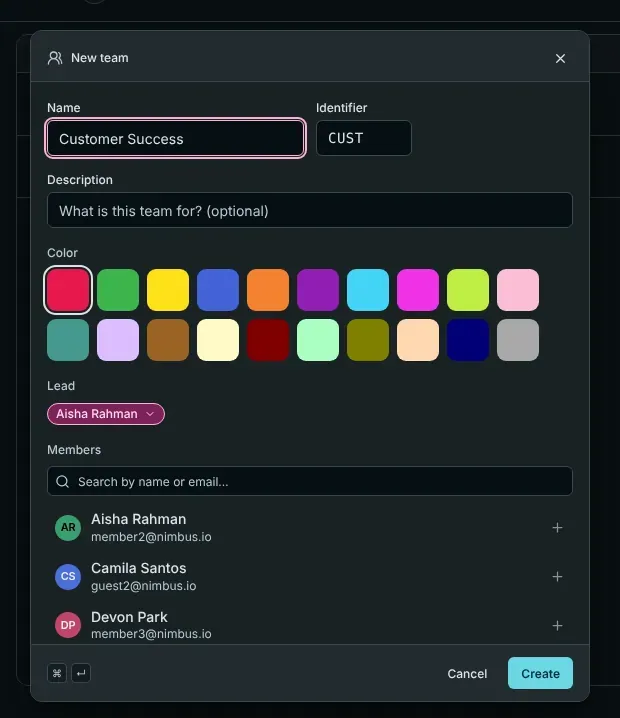
Click New team and fill in:
- Name, a short identifier and a color.
- A description: what is this team for? (optional)
- A lead: the person who looks after the team.
- Members: pick them from the workspace.
- Projects: link the team to the projects it works on, and choose the role in this project that the team’s members receive there.
What linking a team to a project does
When a team is linked to a project with a role, every member of the team gets that role in that project. That saves a lot of clicking:
- A new colleague joins the team? They are in the project right away.
- Someone leaves the team? They lose the access that came only from the team.
- Need a different role for one person? Set it individually on the project’s Members page. An individual role always wins over the team’s. The members list marks roles that come from a team: “Via team ‘Mobile’”.
This also works for private projects: put the people into a team, link the team, and you have set up access for the whole group.
Who may do what
- Seeing all teams, creating, changing and deleting them, and managing their members and linked projects are separate permissions held by workspace owners, admins and managers, see Roles and permissions.
- Workspace members see the teams they belong to.
Deleting a team
Deleting a team only removes the grouping. Accounts, projects and issues stay as they are. People whose access to a project came only from the team lose that access, and Barynt tells you how many people are affected before you confirm.
When teams pay off
A team is useful as soon as the workspace is bigger than a handful of people, or as soon as you have private projects. In a team of six working on one public project, you probably do not need any.