Members and invitations
Bring people into a workspace or a single project, by email, with a link, or automatically by company domain. Change roles and remove people.
A member is a person with access to a workspace. This page covers the three ways of adding people, how to change or remove them, and how to bring in someone from outside for just one project.
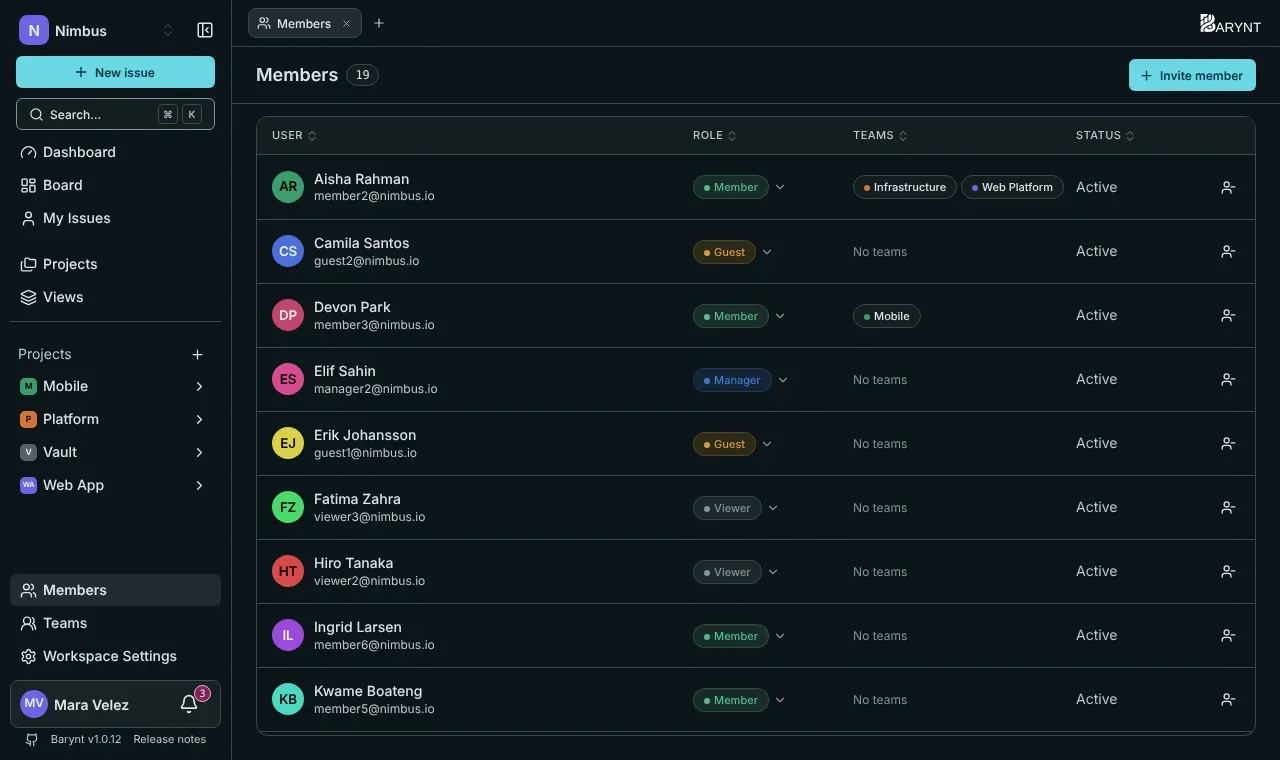
The members list
Open Members in the sidebar. You see everyone in the workspace with their role, their teams and their status (Active, or Invited for people who have not accepted yet). You can change a person’s role right in the list, and remove them with the button at the end of the row. What you can do depends on your own role, see Roles and permissions.
Ways to add people
1. Invite by email
Click Invite member, enter one or more addresses (separated by commas or line breaks), choose a role and send.
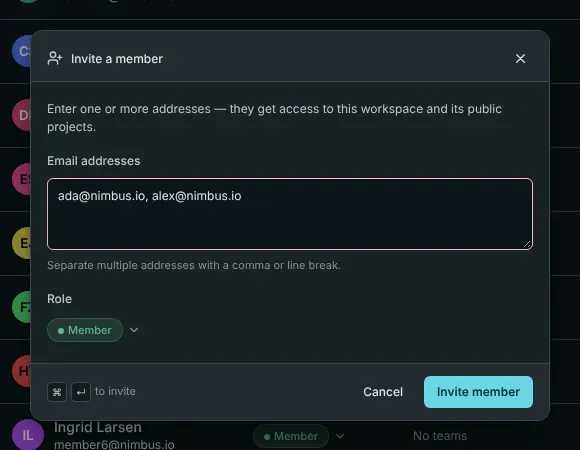
What happens next depends on the address:
- If the person already has an account on this server, they are added straight away. They get a notification, and nothing more is needed.
- If the address is new, Barynt creates an invitation. The person gets an email with a link. One click on it sets up their access and they are in. The invitation is valid for 14 days.
After sending, Barynt tells you for every address what happened: Now added, Invitation sent by email, or, when no mail server is set up, Copy this link with a button to copy it yourself.
New members are put into all public projects of the workspace automatically, with a starting project role that fits their workspace role.
2. An invite link for everyone
Under Workspace settings → Invitations, create an invite link: choose the role and how long it is valid (never, or a number of days) and click Generate link. Anyone who opens it can sign in or create an account and joins with that role. It suits a team chat or an all-hands message. Revoke stops it at any moment.
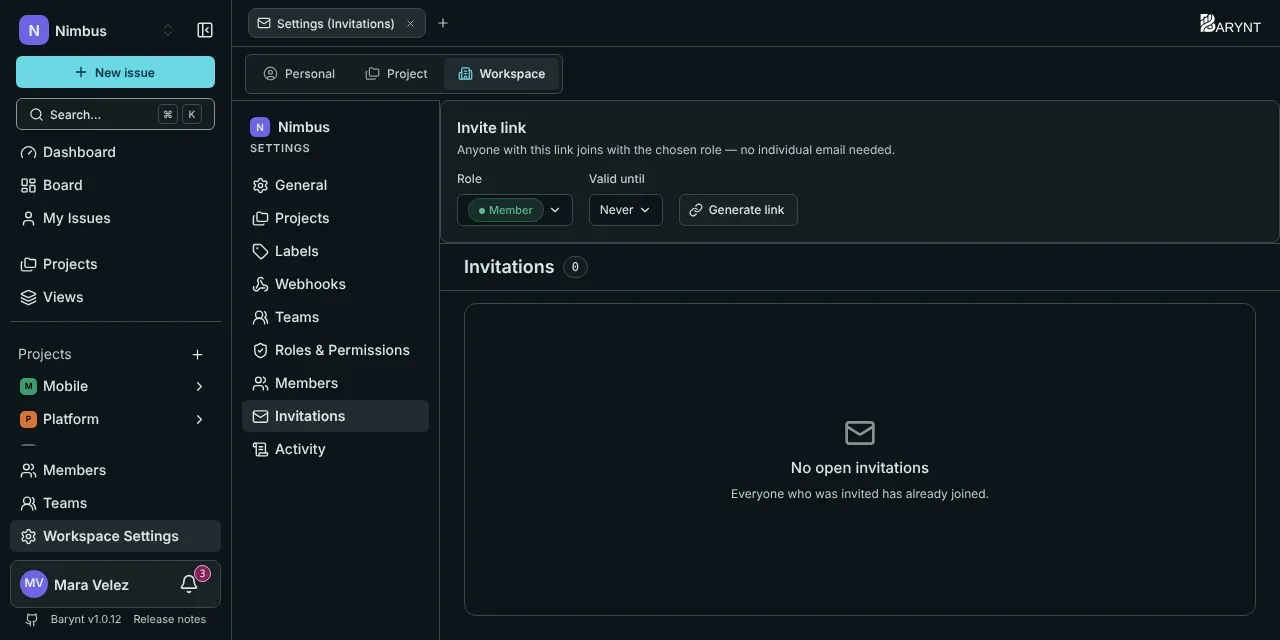
Only one link per workspace is active at a time: generating a new one replaces the old. Use a limited role (Member or Viewer) for a link that many people see.
3. Automatically, by company domain
If everyone in your company has an address on the same domain, you can let the workspace claim it. Anyone who registers with such an address joins automatically as a Member. This is set up under Workspace settings → General, see Workspace settings.
Open invitations
Workspace settings → Invitations also lists everyone who was invited but has not accepted yet: the address, who invited them, when and when it expires. For each one you can:
- Resend: creates a new link and a new 14 days.
- Revoke: the link stops working. If the account only existed for this invitation, it is removed as well.
Changing and removing
- Change a role: pick another role in the Role column. You can only assign roles up to your own rank.
- Remove someone: click the remove button on the row. Barynt shows how many projects the person is active in and asks you to confirm. They lose access to the workspace and all its projects and are told by email (if mail is set up). Their past work stays: issues, comments and history remain as they were.
- Accounts of people who have left the company can also be deactivated by a platform administrator, see Platform administration.
Inviting someone to just one project
Sometimes you want a client or a freelancer to see one project and nothing else.
- Open the project’s Members page and click Add member.
- Choose the tab By email, enter the address and pick the project role. For people from outside, choose Guest.
- Send.
A Guest is added to the project only. They are not members of the workspace and see nothing else. Any other project role also adds the person to the workspace as a regular member, and to its public projects.
The same dialog’s other tab, From workspace, adds people who are already members of the workspace to this project. It is the way to fill a private project. The project’s Invitations page also has an invite link, which gives a chosen project role.
See Project settings for more on project membership.
Teams
Instead of adding people one by one, you can put them into a team and give the team a role on a project.