Workspace settings
Name, look and address of your workspace, shared links, joining by company domain, labels, and what to know before deleting one.
A workspace is the home of one team or company. Its settings live under Workspace Settings at the bottom of the sidebar (the Workspace tab). What you see there depends on your role, see Roles and permissions. Changing the basics needs Change name, color and address, which owners, admins and managers have.
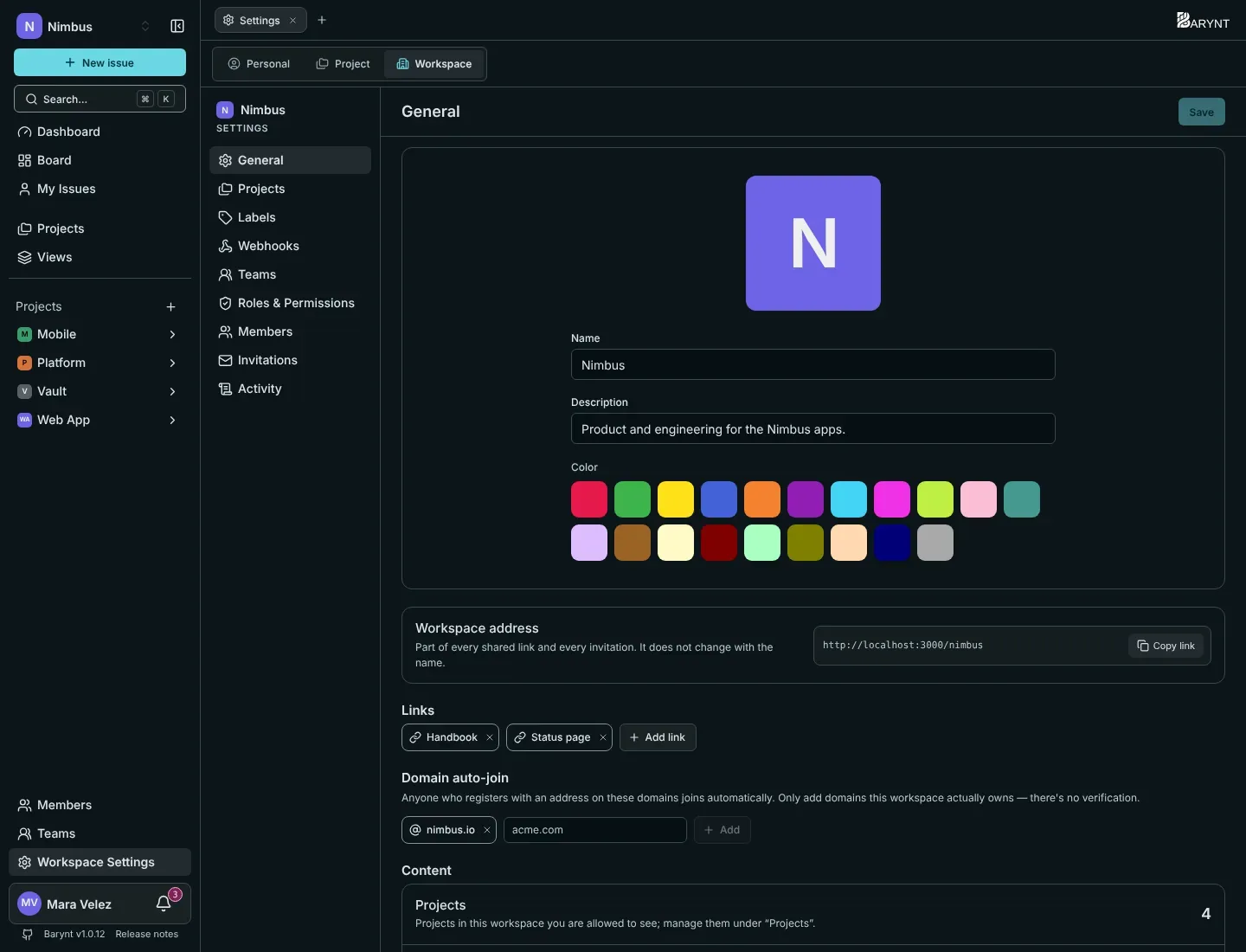
General
- Picture, name and color show up in the sidebar, in the workspace switcher and wherever the workspace appears next to others. Without a picture, you get the first letter on the color you chose. The description is one or two sentences for the overview: what is this workspace for?
- Workspace address is the short name that is part of every link and every invitation, like
/nimbus/…. It is made when you create the workspace and does not change when you rename it, so links keep working. - Links are important addresses your team should find fast: the documentation, the repository, the chat. Click Add link and give each a label and a URL (starting with
http://orhttps://). They show up in the dashboard’s Links widget.
Join automatically by company domain
Under Domain auto-join you can enter the domain of your company, for example nimbus.io. Anyone who then creates an account with an address on that domain joins this workspace automatically as a Member, without an invitation. People who already have an account are not affected.
What is in the workspace
At the bottom, three numbers give you the size of the workspace: projects you may see, members and issues across all projects.
Projects, labels and more
The other entries of the workspace settings:
| Entry | What it is for |
|---|---|
| Projects | All projects of the workspace in two lists, public and private. A click opens one, the pencil edits its details, the bin deletes it. Workspace owners, admins and project leads see the private ones too. See Projects. |
| Labels | The labels that apply in every project, with how many issues use each. You can hide a workspace label in single projects. Labels that belong to one project are listed below, for reference. |
| Webhooks | Tell other systems what happens, see Webhooks. |
| Teams | See Teams. |
| Roles & Permissions | See Roles and permissions. |
| Members and Invitations | See Members and invitations. |
| Activity | What happened in the workspace, see Audit log. |
Workspace labels or project labels?
Use a workspace label for distinctions that mean the same thing everywhere, such as Bug, Customer or Design. Use a project label for words that only make sense in one project, such as Sprint 14. A workspace label is created once and available in every project. If one project does not want it, it can hide it there.
Working with more than one workspace
Click the workspace name at the top of the sidebar to see all workspaces you belong to and to switch between them. New workspace creates another one, if the server allows it. Workspaces are completely separate from each other: members, projects, labels and roles are not shared.
Deleting a workspace
At the very bottom is the Danger zone. Deleting a workspace deletes everything in it for good: its projects, issues, teams, labels and roles. Barynt tells you how many projects and issues will go and asks you to confirm. Only the Owner can do it. There is no undo, so make a backup first if you are not sure.