My issues, inbox and notifications
Everything assigned to you in one place, and a quiet inbox that tells you when something needs you, in the app and optionally by email.
Teams drown in noise when everything pings everyone. Barynt keeps two things apart: My issues is the list of your work, and the Inbox is the short list of things that need your attention right now.
My issues
Click My Issues in the sidebar. You see everything assigned to you, across all projects, as a board by default. It is one of the two system views every workspace has (see Views), so you can filter, group and sort it like any other board or list. With the keyboard: G, then I.
It is a good place to start the day: what is mine, what is in progress, what is waiting for review.
The inbox
The Inbox collects notifications about things that concern you. The bell next to your name at the bottom of the sidebar opens it and shows how many notifications are unread.
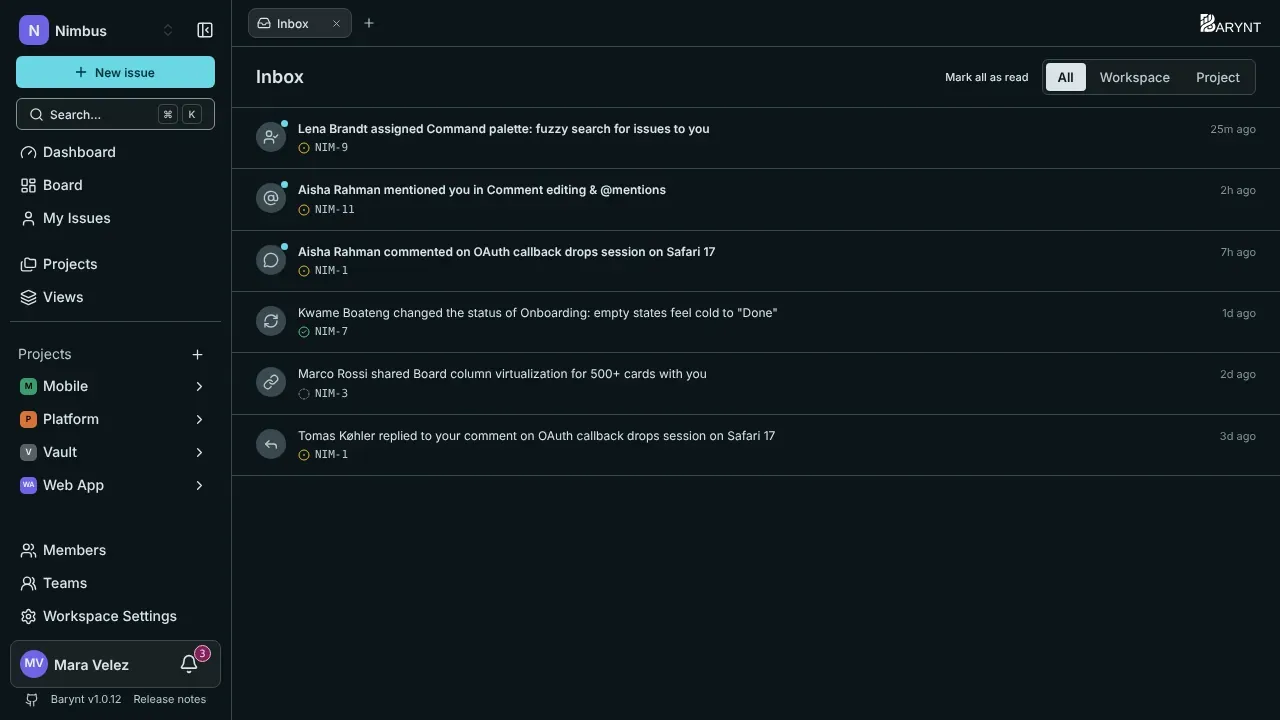
Notifications come in when:
| Event | You are told when… |
|---|---|
| Issue assigned | Someone assigns an issue to you. |
| Mention | Someone names you with @ in a description or a comment. |
| New comment | Someone comments on an issue you created or are assigned to. |
| Reply to comment | Someone replies to one of your comments. |
| Status changed | The status of an issue you created or are assigned to changes. |
| Invitation | You are added to a workspace or a project. |
| Role changed | Your role in a workspace or a project changes. |
| Issue shared | Someone shares an issue directly with you. |
Nobody is notified about their own actions. If you are mentioned in a comment, you get the mention, not an extra “new comment” on top.
Working through the inbox
- Filter by place with the tabs All, Workspace and Project.
- Click a notification to open the issue. It is marked as read.
- Mark all as read clears the list in one go.
- Make the inbox your start page under Personal settings → Navigation if you live in it, see Account and personal settings.
Notifications by email
Every event can be sent in the app, by email, both or neither. You decide under Personal settings → Notifications:
| Event | In the app | By email |
|---|---|---|
| Issue assigned, mention, reply, invitation, role changed, issue shared | on | on |
| New comment, status changed | on | off |
Comments and status changes are off by default because they can be frequent. Turn them on if you prefer email over the inbox.
Making it less noisy
- Switch off email for comments and status changes (the default).
- Use
@mentionsdeliberately: they always reach the person. - Keep your issues assigned correctly. Assignment is what ties notifications to the right person.