First steps
From the sign-in screen to your first issue and your first teammate, in about ten minutes.
This walk-through takes you from the sign-in screen to a first issue and a first teammate. If someone has already set up your workspace, skip ahead to step 4.
1. Sign in
Open the address your administrator gave you. Which buttons you see depends on how the server was set up:
- Sign in with passkey. A passkey replaces the password. You confirm with your fingerprint, your face or your device PIN, and nothing secret ever travels over the network. New here? Choose Register with passkey once.
- Continue with your company login. If your company has single sign-on (Google, Microsoft, Okta, Keycloak and others), use that button, as you do everywhere else.
- A magic link by email. You type your address, and Barynt sends a link or a short code.
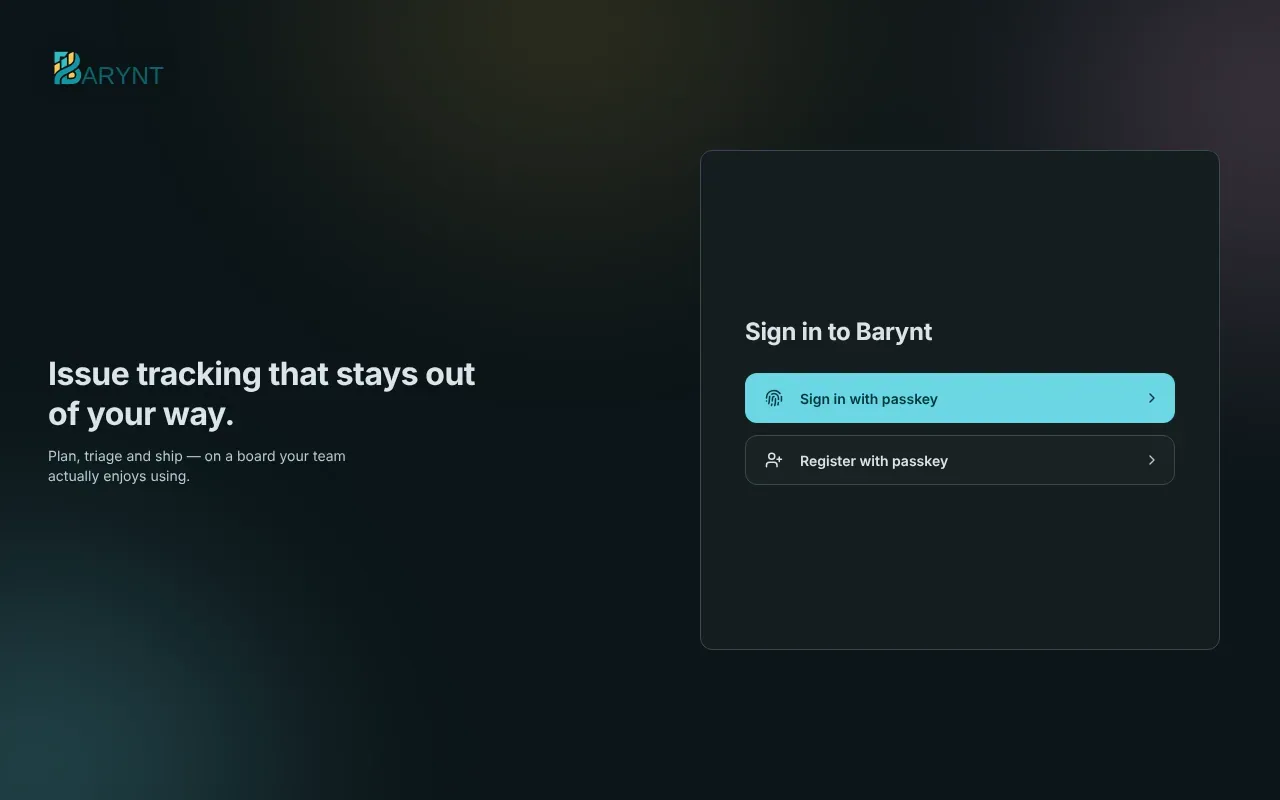
After your first sign-in Barynt asks you to confirm your name and a short username. That username is what others type to mention you (@mara).
2. Join or create a workspace
A workspace is the home of your team: its projects, issues and people. You get into one in one of three ways:
- Someone invites you, by email or with a link.
- Your email domain is claimed by a workspace (for example everyone with
@nimbus.io), and you join automatically. - You create your own: give it a name and a color. The short address (the slug) is made from the name and becomes part of every link.
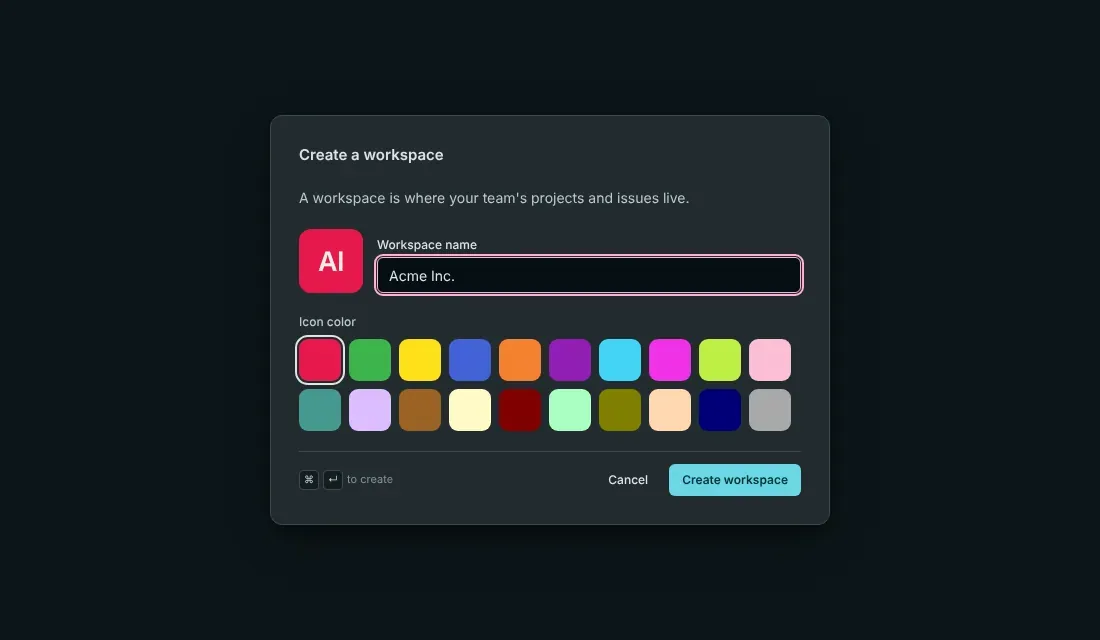
If your administrator has switched off workspace creation, you do not see this step: you are taken straight into the default workspace.
3. Create a project
A project groups related work, for instance “Web App” or “Mobile”. Press N anywhere, or click + next to Projects in the sidebar.
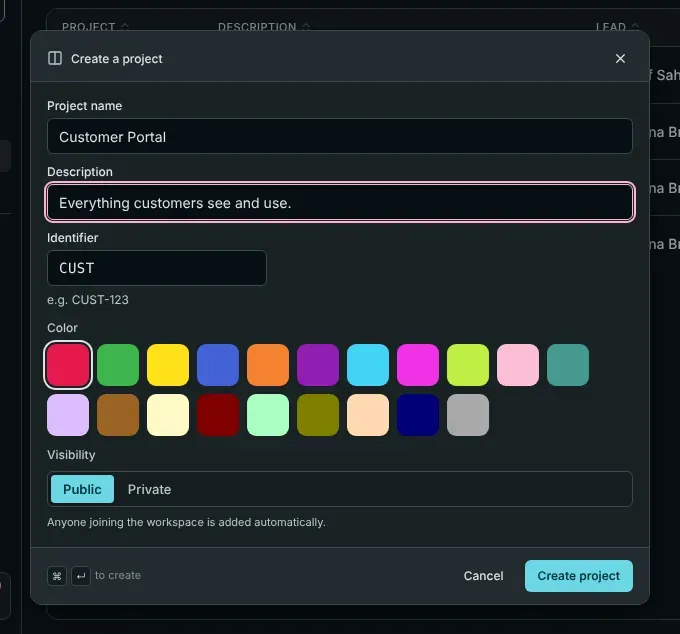
- Name and description are shown in the sidebar and on the project overview.
- Identifier is a short prefix of two to four letters. It becomes part of every issue number: with
WEB, your issues are calledWEB-1,WEB-2and so on. - Visibility decides who is in. Public projects add every workspace member automatically. Private projects only include the people you add yourself. Use private for anything confidential.
4. Write your first issue
Press C (or click New issue at the top of the sidebar). Give it a title, and add as much or as little as you like: a description, a type, a status, a priority, someone to do it, labels. Press ⌘↵ (Ctrl+Enter on Windows and Linux) to create it.
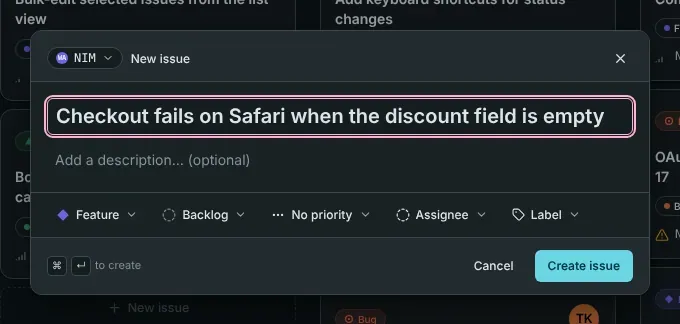
The issue is now in your project, on the Board and in the List. Its number (like WEB-1) is what you use to refer to it in chat, in commits and in other issues.
5. Move it along
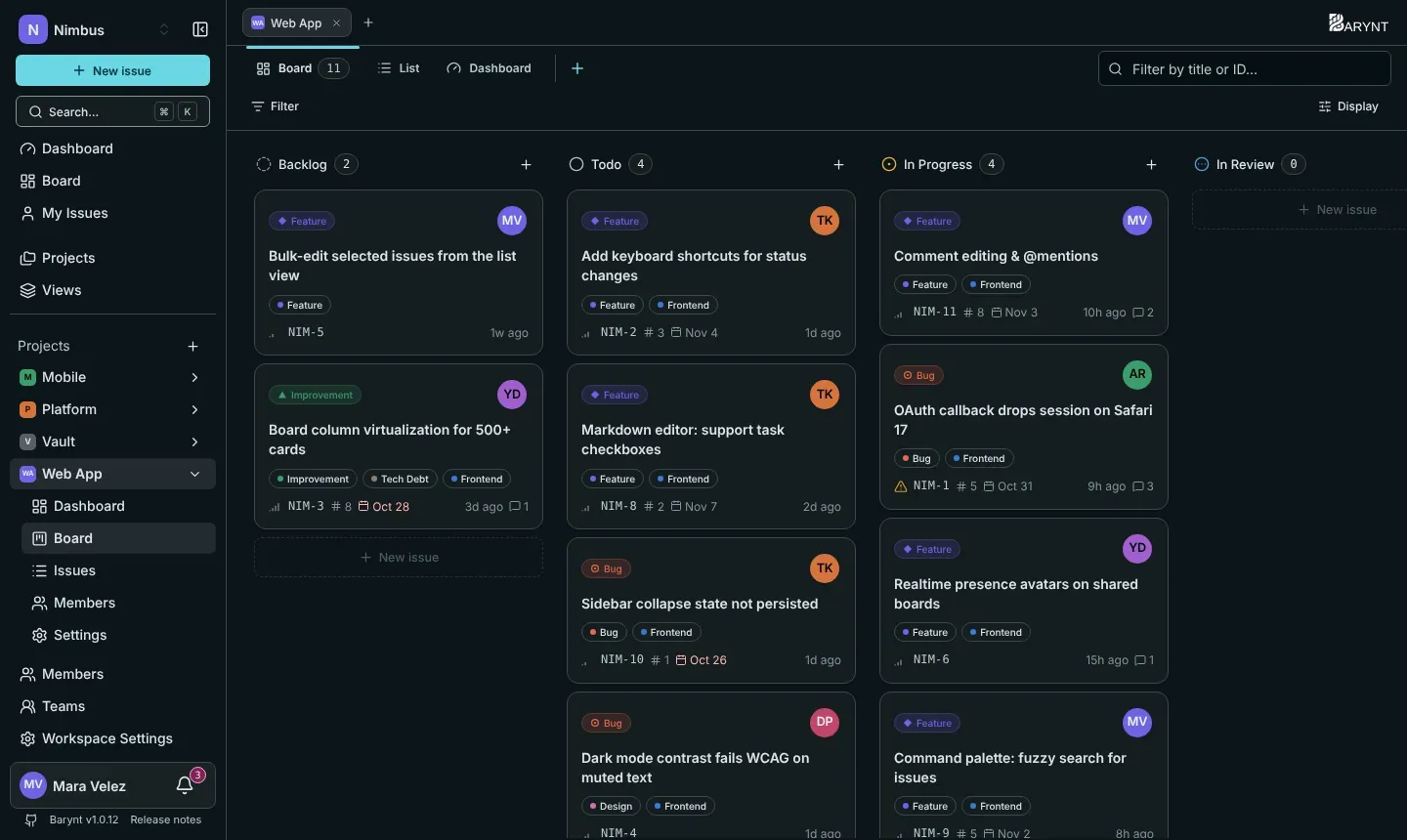
Open the project’s Board. Every column is a status. Drag a card from Todo to In Progress and the status changes for everybody, right away. Click a card to open its details: write a comment, assign it, add a due date, attach a file.
6. Invite your team
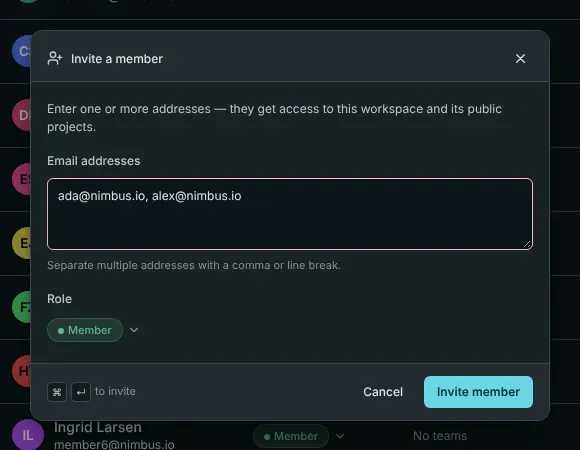
Open Members in the sidebar and click Invite member. Enter one or more email addresses, choose a role (Member is the usual one) and send.
More about this in Members and invitations.
7. Make Barynt yours
Click your name at the bottom of the sidebar to open your personal settings. Three things are worth a minute:
- Appearance: dark or light, English or German.
- Notifications: what lands in your inbox and what is also sent by email. See Account and personal settings.
- Shortcuts: press
?to see all keyboard shortcuts. After a day you will not want to go back.
Where to go from here
- The building blocks: the words Barynt uses, in one page.
- Issues in detail: everything you can do with one.
- Roles and permissions: who may see and do what.