Issues in detail
Create an issue, describe it, assign it, move it along and talk about it: everything you do with one piece of work.
An issue is one piece of work: a task, a bug, an idea. Everything else in Barynt, from boards to dashboards, is just a way of looking at issues. This page is about the issue itself.
Creating an issue
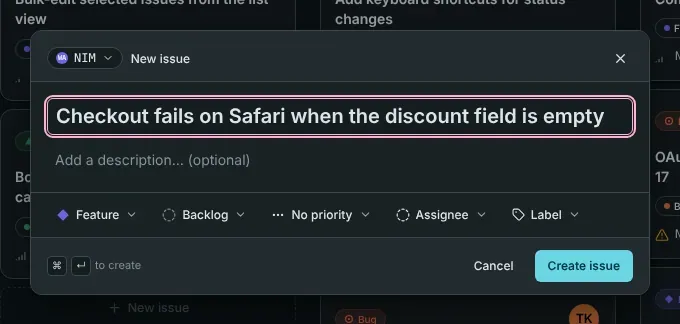
There are several ways, all leading to the same small dialog:
- Press
Canywhere in the app (as long as you are not typing in a field). - Click New issue at the top of the sidebar.
- Click the + at the top of a column on the board, which pre-selects that status.
- Press
⌘K/Ctrl+Kand choose Create new issue.
Only the title is required. Everything else can be filled in now or later. ⌘↵ / Ctrl+Enter creates the issue.
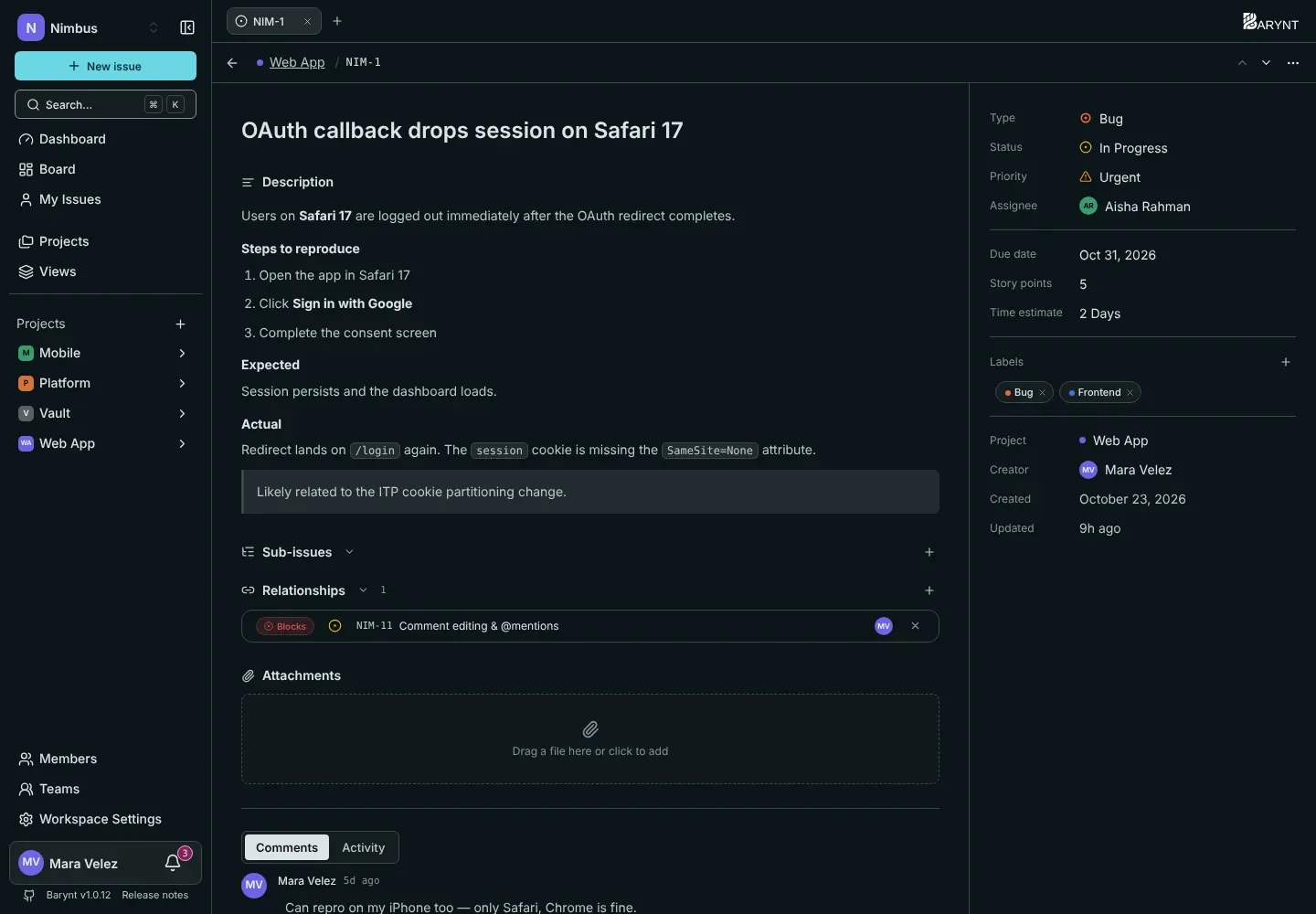
The issue page
Click an issue anywhere (board, list, inbox, search) and it opens. By default it opens in a side panel next to your list, so you do not lose your place. Press E to switch between side panel and dialog, O to open it as a full page. You can choose what a click does under Personal settings → Navigation, see Account and personal settings.
The page has two parts:
- On the left, the story: title, description, sub-issues, relationships, attachments, and below them the Comments and Activity tabs.
- On the right, the properties.
Properties
| Property | What it is for |
|---|---|
| Type | The kind of work: Feature, Bug, Improvement, Task or Chore. |
| Status | Where it stands: Backlog, Todo, In Progress, In Review, Done or Canceled. |
| Priority | How urgent: No priority, Low, Medium, High or Urgent. |
| Assignee | The one person responsible. |
| Labels | Any number of tags, from the project or the workspace. |
| Project, creator, dates | Where it lives, who wrote it, when it was created and last changed. |
Click a property to change it, or hover the issue and use the single-key shortcuts: S status, P priority, A assignee, I assign to me, L labels.
Planning fields
Three optional fields help with planning. They are off by default and can be switched on per project under Project settings → Fields, see Project settings.
- Due date is a calendar day. It powers the overdue numbers on the dashboard and the due-date filters.
- Story points is a whole number, typically 1, 2, 3, 5, 8 or 13, for teams that estimate in points.
- Time estimate is a duration. You can type it in hours, days, weeks, months or years, and Barynt remembers the unit you used.
You can use one, both or neither. There is no conversion between them.
Moving an issue along
Change the status in the properties, with S, or by dragging the card on the board. When an issue becomes Done or Canceled, Barynt remembers when. That is what the dashboard uses to measure how much your team finishes and how long things take. Moving it back into work clears that moment again.
Talking about it
Below the description is the discussion. Write a comment, mention a colleague with @, or refer to another issue with #. Replies and emoji reactions keep long threads readable. The assignee and the creator are told about new comments, anyone you mention gets a notification, and so does the author of a comment you reply to. See Inbox and notifications.
The Activity tab is the other half of the story. It lists every change on this issue: who changed the status, the assignee, the labels, and when. Nothing here can be edited, so you can rely on it.
More about writing well in Writing and formatting.
Breaking down and linking
- Sub-issues split a big issue into smaller steps, each with its own assignee and status.
- Relationships say how issues depend on each other: blocks, is blocked by, relates to, is a duplicate of.
- Attachments hold files and links.
All three are covered in Sub-issues, relations and attachments.
Sharing and deleting
The … menu at the top of the issue offers:
- Share, which creates a read-only public link for people without an account, see Sharing an issue.
- Delete issue, which removes it for good. Sub-issues are not deleted with it: they move up one level.
Copy the issue number with ⌘. / Ctrl+., or a link to it with ⌘⇧, / Ctrl+Shift+,.
Who may do what
What you can change depends on your role in the project:
- A Contributor (the usual role) can create issues, edit and delete their own (created by them or assigned to them), assign issues, and comment on everything they can see.
- A Project admin can edit and delete any issue.
- A Viewer can read and comment.
Details are in Roles and permissions.