Writing and formatting
Descriptions and comments in Barynt are rich text. Type / for everything you can insert, @ to mention people, # to link issues.
Issue descriptions and comments share the same editor. It is simple on purpose: you can write plain text and never think about it, and the formatting is there when you need it.
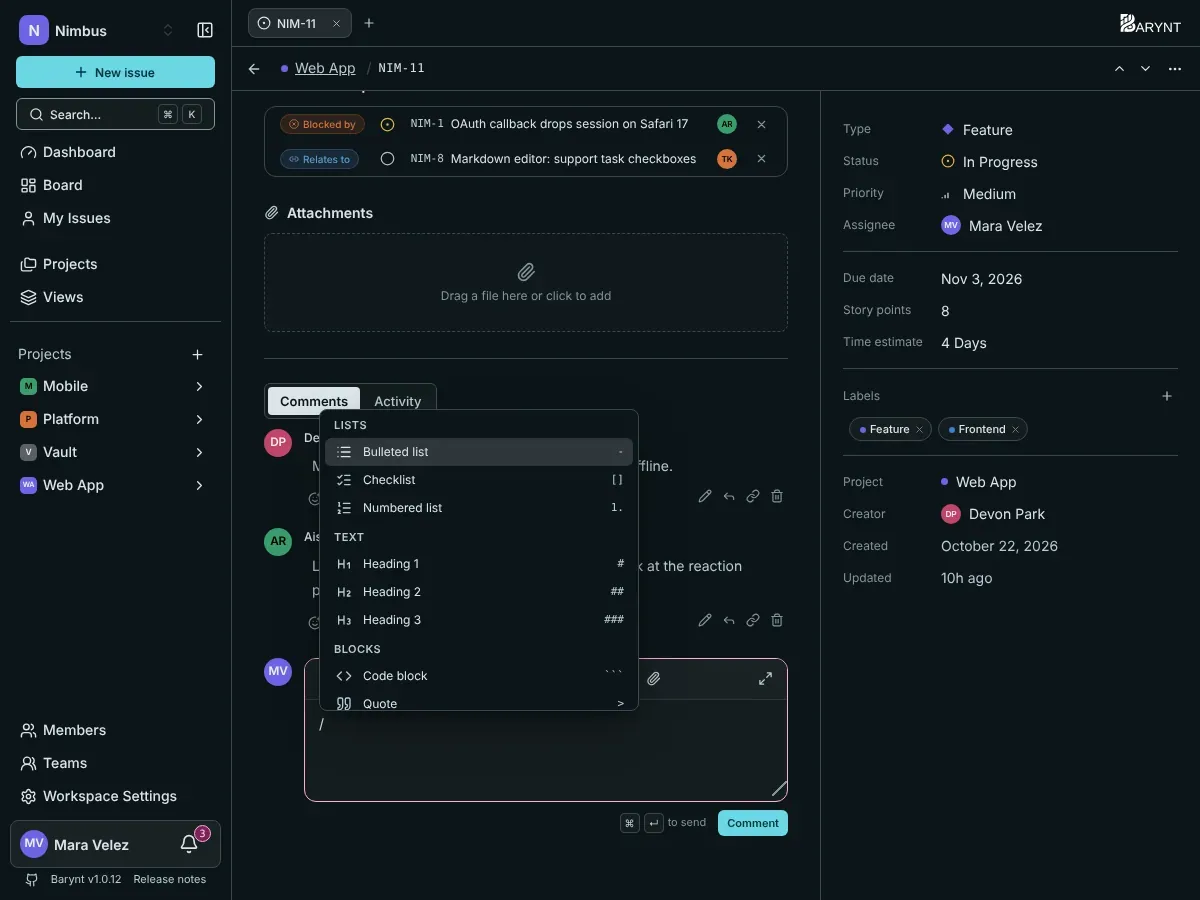
Type / for everything
Anywhere in the text, type / to open the command menu, then keep typing to narrow it down (“/table”, “/code”). Use the arrow keys and Enter, or click.
| Group | What you can insert |
|---|---|
| Text | Heading 1, 2 or 3 |
| Lists | Bulleted list, numbered list, checklist with tick boxes |
| Blocks | Code block, quote, info panel, warning panel, table, divider |
| Insert | Link, image, video or file, mention a person, link another issue, date |
Short forms work as you type, too: # followed by a space starts a heading, - followed by a space a bullet list, 1. a numbered list, [ ] a checklist.
Formatting text
The toolbar above the text offers bold, italic, strikethrough, inline code, headings, lists, a checklist, a quote, links and attachments. The usual shortcuts work as well: bold (⌘B), italic (⌘I), and ⌘K / Ctrl+K for a link.
Mention people with @
Type @ and the first letters of a name. Pick the person from the list and they are mentioned, which sends them a notification (see Inbox and notifications). You can mention in the description and in comments.
Link issues with #
Type # and a few letters of a title or a number, such as #NIM-12. The reference becomes a link that shows the issue’s number and title, so everyone can jump straight there. It is the easy way to say “this is related to…” in the middle of a sentence.
Images, videos and files
Choose Image, video or file from the / menu, or use the paperclip in the toolbar. You can upload a file or insert one from an address. Uploads need object storage to be set up. The limit is 100 MB per file.
Checklists
A checklist is the quickest way to track small steps inside one issue. Tick the boxes as you go. If a step deserves its own owner, status and discussion, turn it into a sub-issue instead.
Info and warning panels
Panels set a paragraph apart in a colored box. Use an info panel for background and a warning panel for something people must not miss, such as “do not deploy on Fridays”.
Comments
The comment box sits below the description. ⌘↵ / Ctrl+Enter sends. The same box handles replies: click Reply under a comment and the thread stays together. React with an emoji under any comment, which is often enough of an answer.
Your own comments can be edited (an “(edited)” mark is added) and deleted. Whether you can edit or delete other people’s comments depends on your role, see Roles and permissions.
Full screen and long texts
Writing a long description? Use the full-screen button in the toolbar for the full height of the screen. On a phone or tablet, the editor opens in place and keeps the issue visible above the keyboard.