Views
Save a combination of filters, grouping and layout under a name, and open it again with one click: for you, for a project or for the whole workspace.
A view is a saved way of looking at issues. It remembers the filter, the grouping, the order and the layout, so “all open bugs, grouped by assignee” is one click away instead of five.
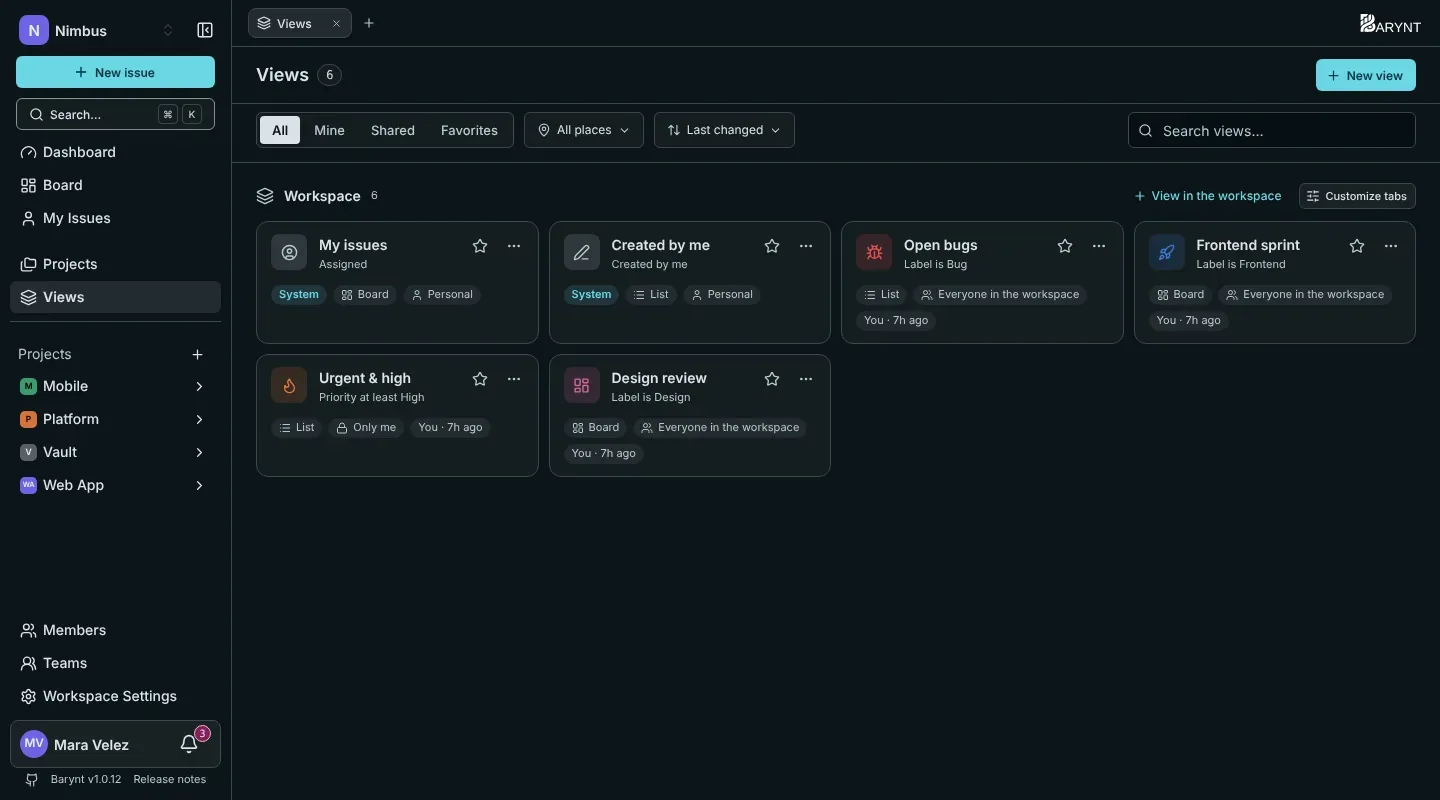
Some views worth having
- Open bugs: a list filtered to type Bug and everything not done.
- This sprint: a board filtered to the label
Sprint 14. - Urgent and high: a list of priority High and above, grouped by assignee, kept private for your Monday check.
- Design review: a board of everything labelled
Design, shared with the whole team.
Two views come ready-made
Every workspace has two system views that nobody can change or delete:
- My issues (shown as Assigned on the tabs): everything assigned to you, across all projects.
- Created by me: everything you wrote.
They are personal even though they are shared: each person sees their own.
Creating a view
There are two ways:
- Set up what you want first. Filter, group and sort the board or list as you like. A small Unsaved marker appears. Click Save as new view and give it a name. Click Discard instead to throw your changes away.
- Start from the plus next to the tabs, choose New view and fill in the form.
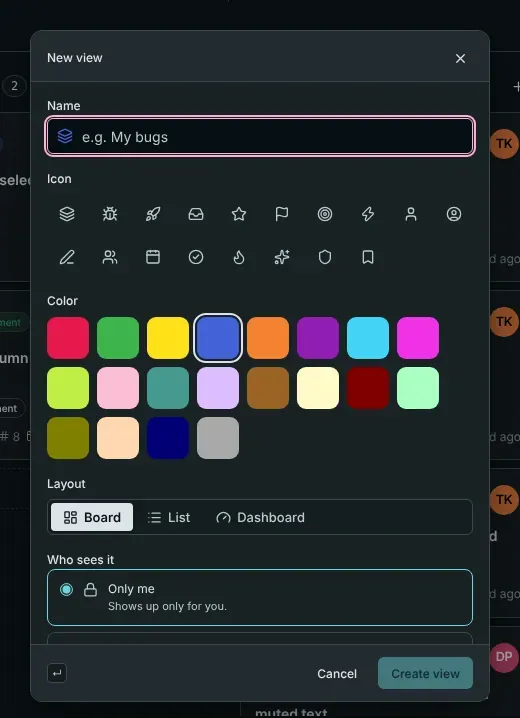
| Field | What it does |
|---|---|
| Name and icon | How it is recognised on the tab and in lists. |
| Layout | Board, List or Dashboard. A view can even be a dashboard with a filter, see Dashboards. |
| Where does it live? | In the workspace (issues from every project) or in one project. |
| Who sees it | Only me, Everyone in the project, or Everyone in the workspace. |
| Take over the current filters, grouping and order | Starts from what is on your screen right now. |
Finding and organising views
The Views page in the sidebar lists every view you can see, with filters for Mine, Shared and Favorites, a choice of place (workspace or a project) and a search box. The tab bar of each project shows its views, and a More menu holds the ones that do not fit.
On every view, the … menu offers:
- Pin to sidebar and Add to favorites (the star): two personal switches that decide what shows up in your sidebar. Nobody else sees them.
- Make project start view: what opens when you click the project’s name (once you have chosen Start view under Personal settings → Navigation).
- Edit, Duplicate, Copy link and Delete.
Under Customize tabs you decide which tabs you see in a project and in which order. That is personal, too.
Who may do what
- Anyone who can see a project can create private views there.
- Sharing a view with a project or workspace needs the permission Create shared views. Members have it for the workspace by default; viewers do not.
- Changing or deleting a shared view that someone else created needs Edit and delete shared views created by others, which project leads, managers and admins have.
- A shared view you cannot change is marked read-only and says who shared it.
Deleting a view never deletes issues. It only removes the saved way of looking at them.