MCP server: connect an AI assistant
Let Claude, ChatGPT, Cursor and other AI assistants read and update your issues, signing in as you, with your permissions and no key to copy.
Barynt has a built-in MCP server. MCP, the Model Context Protocol, is the standard way for AI assistants to use other tools. Once connected, you can talk to your issue tracker in plain language, from inside the assistant you already use.
What it is good for
You ask, the assistant does it in Barynt:
- “What is in progress on the Web App project, and who is on it?”
- “Create issues for the action points from this meeting transcript, assigned as discussed.”
- “Summarize all open bugs labelled
Customerfor my Monday update.” - “Move all issues I finished this week to Done, and comment on NIM-12 that it ships Friday.”
- “Find duplicates of this bug report and link them.”
Everything the assistant does is visible in Barynt: issues created through it say “Created via MCP”, and every change appears in the issue’s activity.
Who is acting?
The assistant acts as you. It signs in through your browser and gets exactly the permissions you have: no more, no less. If you cannot delete a project, neither can the assistant. This is the safety net behind everything else on this page.
Connecting
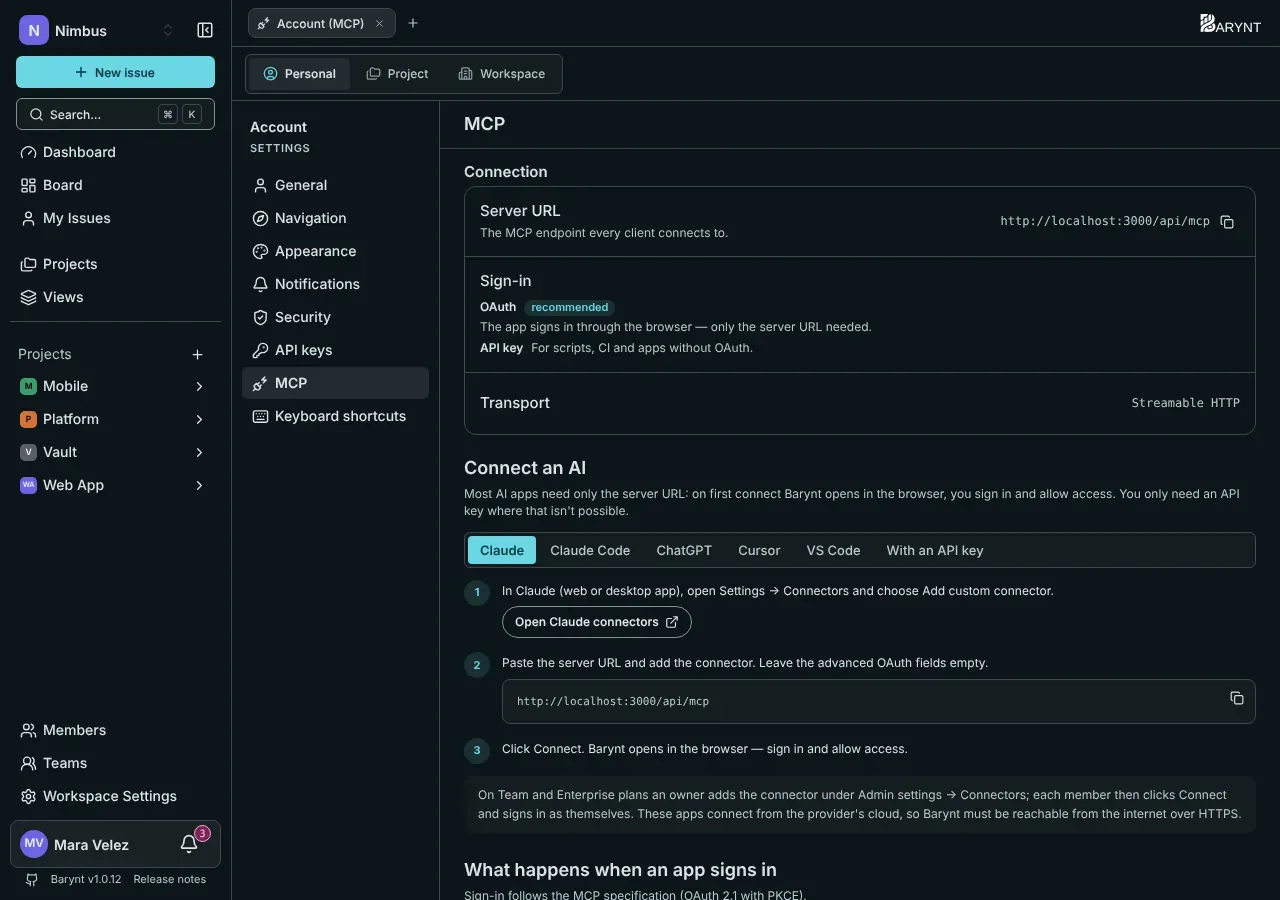
Open your personal settings, section MCP. It shows your server address and a step-by-step guide for each app, with copy buttons. The address looks like https://issues.example.com/api/mcp.
Claude (web and desktop)
- Open Settings → Connectors and choose Add custom connector.
- Paste your server address and add the connector. Leave the advanced fields empty.
- Click Connect. Barynt opens in your browser: sign in and click Allow.
On Team and Enterprise plans, an owner adds the connector once under Admin settings → Connectors. Each member then clicks Connect and signs in as themselves.
Claude Code
claude mcp add --transport http --scope user barynt https://issues.example.com/api/mcpThen sign in: a browser window opens, or run /mcp inside a session and choose Authenticate. claude mcp logout barynt signs out again.
ChatGPT
Open Settings → Apps & Connectors → Advanced settings and turn on Developer mode. Create a new connector, paste the server address and choose OAuth. Sign in to Barynt in the window that opens.
Cursor and VS Code
The MCP settings page has an Add to Cursor and an Add to VS Code button that does the setup for you. Then sign in when the app asks. Start a new chat afterwards.
With an API key (scripts and special cases)
Only where a browser sign-in is not possible, such as scripts or CI. Create a key under API keys with only the scopes you need, see REST API, and send it as a header:
claude mcp add --transport http barynt https://issues.example.com/api/mcp \ --header "Authorization: Bearer $BARYNT_API_KEY"Keep the key in an environment variable, not in a file you share.
What the assistant can do
37 tools, one for each thing you can do in the app. Each checks your permissions first. Every tool, with its scope and arguments, is listed in the MCP tools reference.
| Area | Tools |
|---|---|
| Workspaces | list, create, update, delete |
| Projects | list, create, update, delete |
| Members | list the members of a workspace or a project |
| Issues | list (with filters, text search and saved views), read one, create, update (title, description, status, priority, type, assignee, labels, dates, estimates, parent) |
| Relations | add and remove (blocks, relates to, duplicate of) |
| Comments | list, create, update, delete |
| Attachments | list, read (images and text files directly), add files and links, delete |
| Labels | list, create, update, delete |
| Views | list, read, create, update, delete |
| Options | list statuses, priorities and issue types |
What to say
You do not call tools yourself: you describe what you want, and the assistant picks the tools. A few phrases that work well:
- “What is open on the Website Relaunch project, and who is working on what?”
- “Create three issues from these meeting notes, label them
Customer, and assign the first to Priya.” - “Move everything that is In Review and older than two weeks back to In Progress and write a comment saying why.”
- “Read the screenshot on WEB-42 and tell me what is wrong.” (the assistant can look at images up to 5 MB and text files up to 512 KB)
- “Find issues that look like duplicates of WEB-42 and link them.”
The assistant needs ids for some things (a project, a status). It looks them up itself with the list tools, so name things the way you would to a colleague.
Behind the scenes
For the curious and for people setting up a client by hand.
- Address:
https://your-server/api/mcp, the transport is Streamable HTTP, stateless: every request stands on its own, there are no sessions to keep alive. - Signing in: a bearer token in the
Authorizationheader. Either an API key (bry_…) or an OAuth access token (bryat_…) that an app received after you allowed it. Both end at the same tools, with the same scopes and the same budget of 120 requests per minute per key. - No token: the server answers
401with aWWW-Authenticateheader that points at/.well-known/oauth-protected-resource. That is how an app finds out where to sign in. - Tool results are JSON as text. An error is a result marked as an error, with the text
code: message, for exampleinsufficient_scope: This API key is missing the "issues:write" scope.The codes are the same as in the REST API:unauthorized,insufficient_scope,forbidden,not_found,invalid_input,rate_limited,workspace_creation_disabled, and for attachments the specific codes. Something you may not see is alwaysnot_found. - Hints: when an issue has comments, reading it also tells the assistant to fetch them with
list_comments, so it does not miss the discussion. - Lists are paged like in the REST API:
limit(1 to 100) andcursor, answered with anextCursor. Filters are plain JSON objects, see Filters.
The OAuth sign-in in detail
| Step | What happens |
|---|---|
| Discovery | GET /.well-known/oauth-protected-resource and /.well-known/oauth-authorization-server tell the app where everything is. |
| Registration | The app registers itself (dynamic client registration, POST /api/oauth/register), as a public client without a secret. |
| Consent | The app opens Barynt’s sign-in and consent page, with PKCE (S256, required). It asks for scopes; without a request, it may ask for all. You see what it asks for and click Allow. |
| Token | The app trades the one-time code (valid ten minutes) for an access token (valid one hour) and a refresh token (valid 30 days). |
| Renewal | The app renews the access token on its own. A refresh token works once and is replaced by a new one every time; if an old one is used again, the whole grant is revoked. |
A token can never do more than your roles allow, and only within the scopes granted.
Talking to the server directly
Most people never need this, since an app does it for them. It is the standard MCP JSON-RPC over HTTP; send both Accept types:
curl -X POST "$BARYNT_URL/api/mcp" \ -H "Authorization: Bearer $BARYNT_API_KEY" \ -H "Content-Type: application/json" \ -H "Accept: application/json, text/event-stream" \ -d '{ "jsonrpc": "2.0", "id": 1, "method": "tools/call", "params": { "name": "list_workspaces", "arguments": {} } }'Replace tools/call and params with tools/list to see all tools and their input schemas.
Staying in control
- The assistant can only do what you may do, and only after you allow it on the consent page the first time.
- To cut it off, remove the connector in the assistant. For keys, revoke the key under API keys, and it is cut off immediately.
- You can see what happened in the Activity tab of each issue, and the audit log records the bigger changes.
- Assistants can make mistakes. For work that matters, ask them to show what they plan to change, or limit the key’s scopes to read-only.
When it does not work
| What you see | Likely cause |
|---|---|
| The app cannot connect at all | Barynt is not reachable from the internet over HTTPS (Claude and ChatGPT connect from their cloud), or the address is wrong. It must end in /api/mcp. |
| The sign-in does not open or fails | The browser blocked the window, or you typed a different address than the one on the MCP settings page. Use the address shown there. |
insufficient_scope | The key or token was granted fewer scopes than the call needs. Create a new key with the scope, or connect the app again. |
not_found | The id is wrong, or the item is not visible to you. Barynt answers the same either way. Ask the assistant to look the item up again. |
rate_limited | More than 120 requests a minute. The assistant waits and continues, or ask it to work in smaller steps. |
| New tools or fields are missing | Start a new chat: apps read the tool list when a chat begins. |
How the sign-in works (for the curious)
Barynt follows the MCP standard: OAuth 2.1 with PKCE. The assistant calls the server address without a token, learns where to sign in, registers itself and sends you to Barynt’s consent page. After you allow, it gets a token that refreshes on its own. No key is ever copied around. This is why you only need the server address.