Board and list
See the same issues as columns or as rows, then filter, group and sort them until the picture is the one you need.
Barynt has two basic layouts for issues. They show the same data, so use whichever suits the moment: the board to move work along, the list to scan, sort and work through many issues.
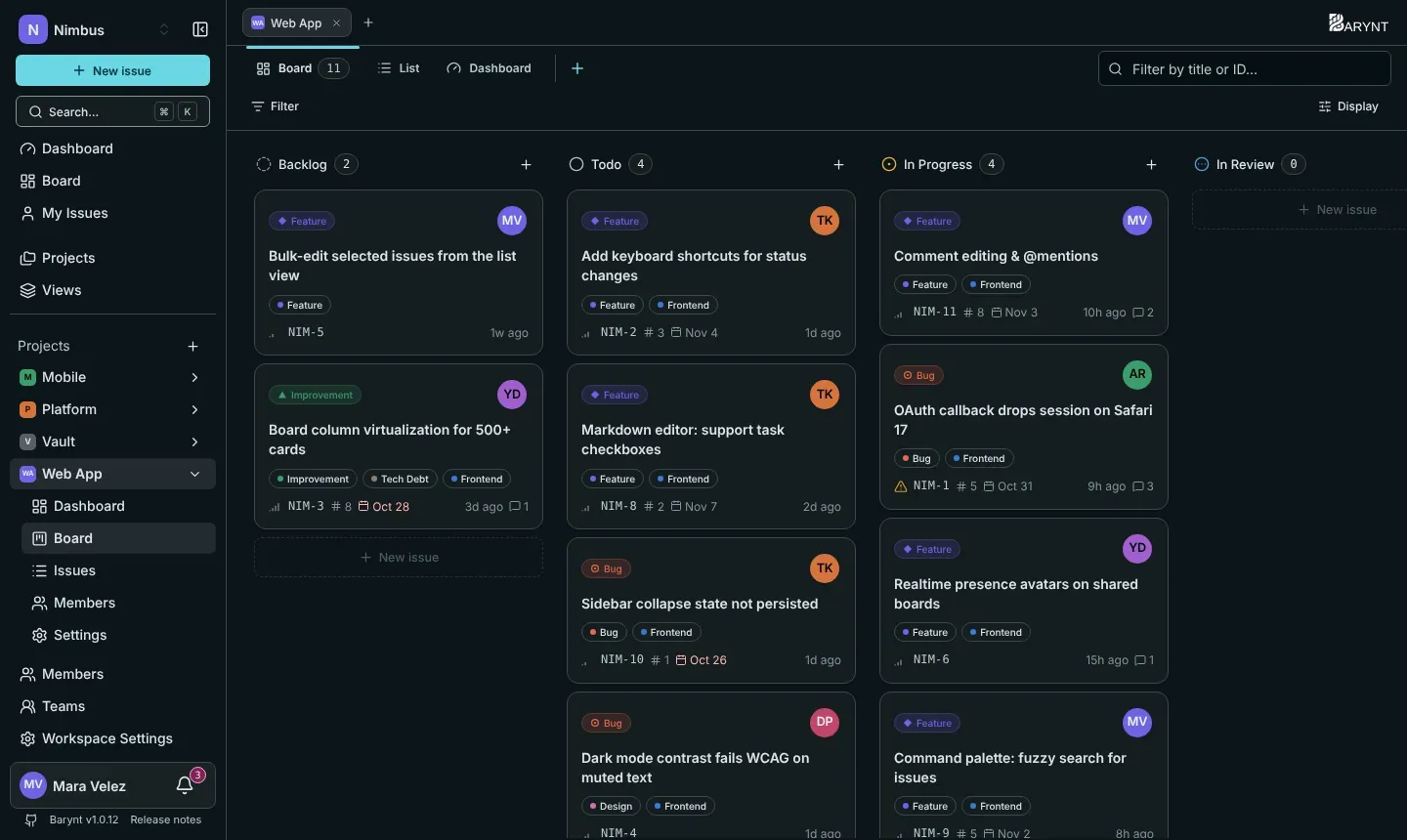
The board
Each column is a status: Backlog, Todo, In Progress, In Review and Done. Every issue is a card. What a card shows: its project (on the workspace board), type, title, labels, number, priority, assignee’s picture, when it last changed and how many comments it has.
- Drag a card to another column and its status changes for everybody, at once.
- Drag a card up or down inside a column to rank it. The order you set is the order everyone sees (the default manual ordering).
- Click a card to open it, or move with the arrow keys and press
Enter. - The + at the top of a column creates an issue in that status.
- Canceled issues are not shown as a column, but you can bring them back with Shown groups (see below).
No mouse at hand? Open the card and change its status with S, or press ⌘K and use the commands.
The list
The list shows the same issues as rows: number, title, status, priority, assignee, labels and the date. Rows are grouped (by default by status) and each group can be folded away. Click a row to open the issue.
Use J and K to move down and up, Enter to open, like in many mail clients.
Display: choose what you see
The Display button on the right opens a small menu. Your choices are remembered for you, per project.
| Setting | What it does |
|---|---|
| Board / List | Switches the layout. |
| Columns / Grouping | Group by Status (the default), Priority, Type, Assignee or Story points. On the workspace board you can also group by Project. |
| Swimlanes | A second grouping as horizontal rows, for instance columns by status and one lane per person. |
| Ordering | Default (your manual ranking), or sort by priority, type, status, story points, due date, time estimate, last update, creation date, title or assignee, ascending or descending. |
| Shown groups | Hide columns you do not need, such as Backlog, and re-order the others. |
| Hide empty groups | Collapses columns without issues. |
| Show sub-issues | Shows sub-issues next to their parents. Off by default. |
| Display properties | Which details cards show: priority, labels, story points, due date. |
| Reset | Back to the defaults. |
If you want one of these setups again tomorrow, or want to share it with your team, save it as a view.
Filter: show only what matters
Click Filter above the board. The quick filters are Status, Type, Priority, Assignee and Label. Pick one or several values in each. Clear all filters starts over.
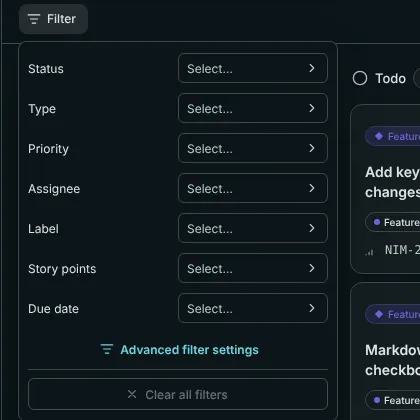
For anything more precise, open Advanced filter settings. There you build conditions yourself:
- Fields include status, type, priority, assignee, creator, labels, due date, story points and whether it is a sub-issue.
- Comparisons include is, is not, is empty, at least, at most, before, after and within.
- Special values save typing: Me stands for whoever is looking, and dates can be relative, like overdue, today, next 7 days or last 30 days.
- Conditions can be combined with AND or OR, and grouped into boxes.
To find an issue by name or number, use the Filter by title or ID box next to the tabs. For a search across everything, press ⌘K, see Search and keyboard shortcuts.
Workspace-wide board and list
Board and Issues in the top part of the sidebar do the same across all your projects. Cards then carry the project name, and you can group by project.