Sub-issues, relations and attachments
Split big work into steps, show what depends on what, and keep the files that belong to an issue right next to it.
Real work is rarely one clean task. These three tools, all on the issue page, keep the connections visible.
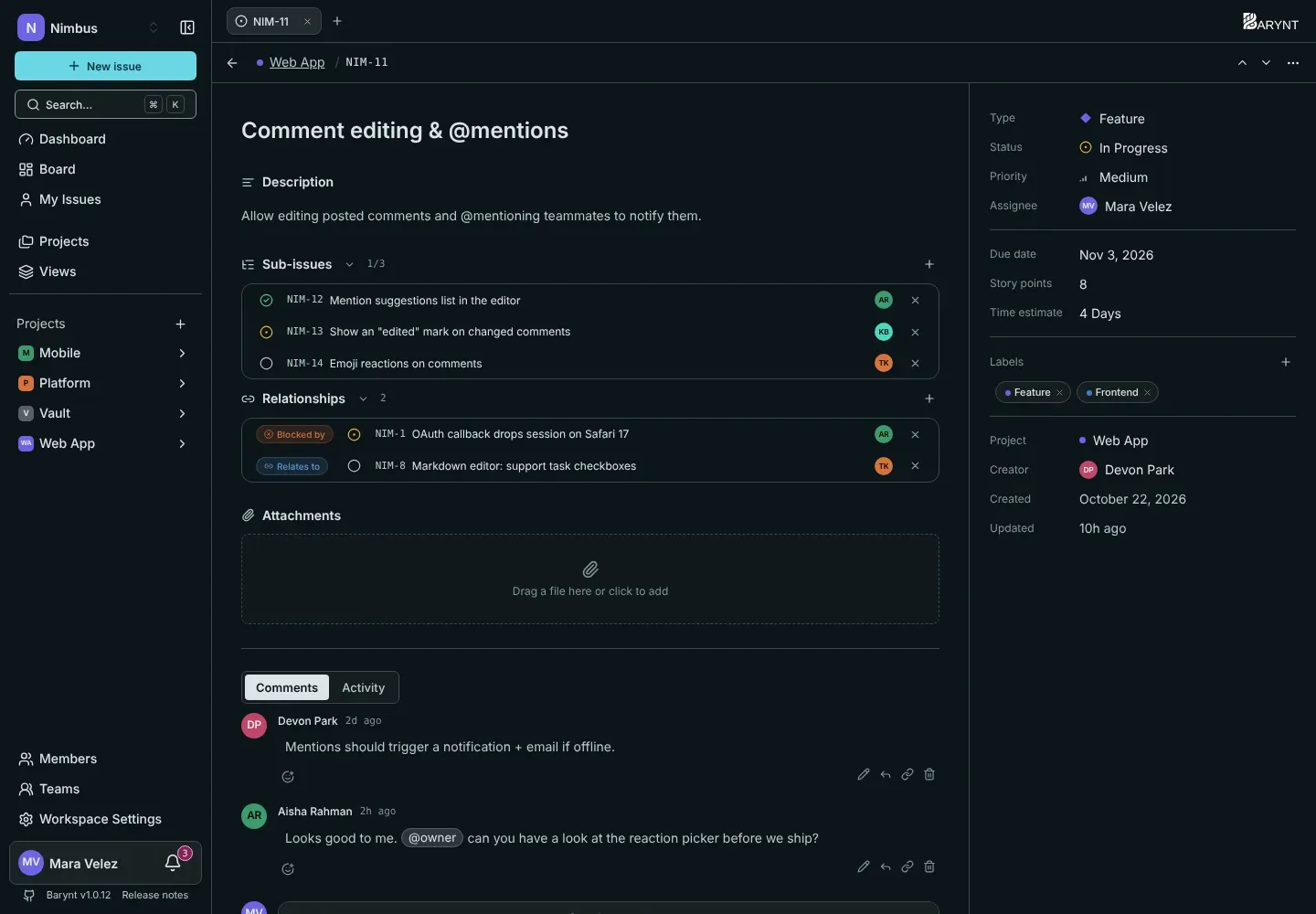
Sub-issues
A sub-issue is a normal issue that belongs to a bigger one, its parent. Use it when a task has several steps and each step needs its own owner, status or discussion. “Redesign the settings page” can have sub-issues for “Draw the layout”, “Build the form” and “Write the help text”.
- Click + next to Sub-issues (or press
T) to add one. You can create a new issue right there or pick an existing one. - The section header shows progress as done / total, for example
2/5. - Each sub-issue has its own assignee, status and priority. It can even live in another project, as long as you can see both.
- To remove the link, open the sub-issue and choose Remove parent. The issue itself stays.
By default, sub-issues are hidden on the board and in lists, so a parent does not appear next to its own children. If you would rather see them everywhere, switch on Show sub-issues in the Display menu, see Board and list. A filter can also single them out (“Only sub-issues” or “No sub-issues”).
Relationships
A relation is a link between two issues that are separate but connected. Click + next to Relationships (or press R), choose the type and search for the other issue.
| Relation | Read it as | Use it when |
|---|---|---|
| Blocks | “This issue blocks that one” | Something cannot start before this is done. |
| Blocked by | “This issue waits for that one” | The same relation, seen from the other side. |
| Relates to | “These two belong together” | Related, but neither depends on the other. |
| Duplicate of | “This is the same as that one” | Two people reported the same thing. Keep one, link the other. |
| Duplicated by | “That one is a copy of this” | The same relation, seen from the other side. |
You only set a relation once. It shows up on both issues, worded the right way round for each. Every added or removed relation is recorded in the issue’s activity.
Attachments
The Attachments section holds files and links that belong to the issue: a screenshot of the bug, a contract, a link to the design in your design tool.
- Add a file by clicking the area or dragging a file onto it. Images and videos show a preview, other files a download button.
- Add a link to point at something that lives elsewhere.
- The limit is 100 MB per file.
- Anyone who can see the issue can open the attachments. Removing one deletes the stored file as well.
What the activity shows
Every change here is written to the issue’s Activity tab: parent set or cleared, sub-issue added or removed, relation added or removed, attachment added or removed. That makes it easy to answer “who linked this, and when?”.