Roles and permissions
Who may see what and who may change what, at three levels. Start with the ready-made roles, build your own when you need to.
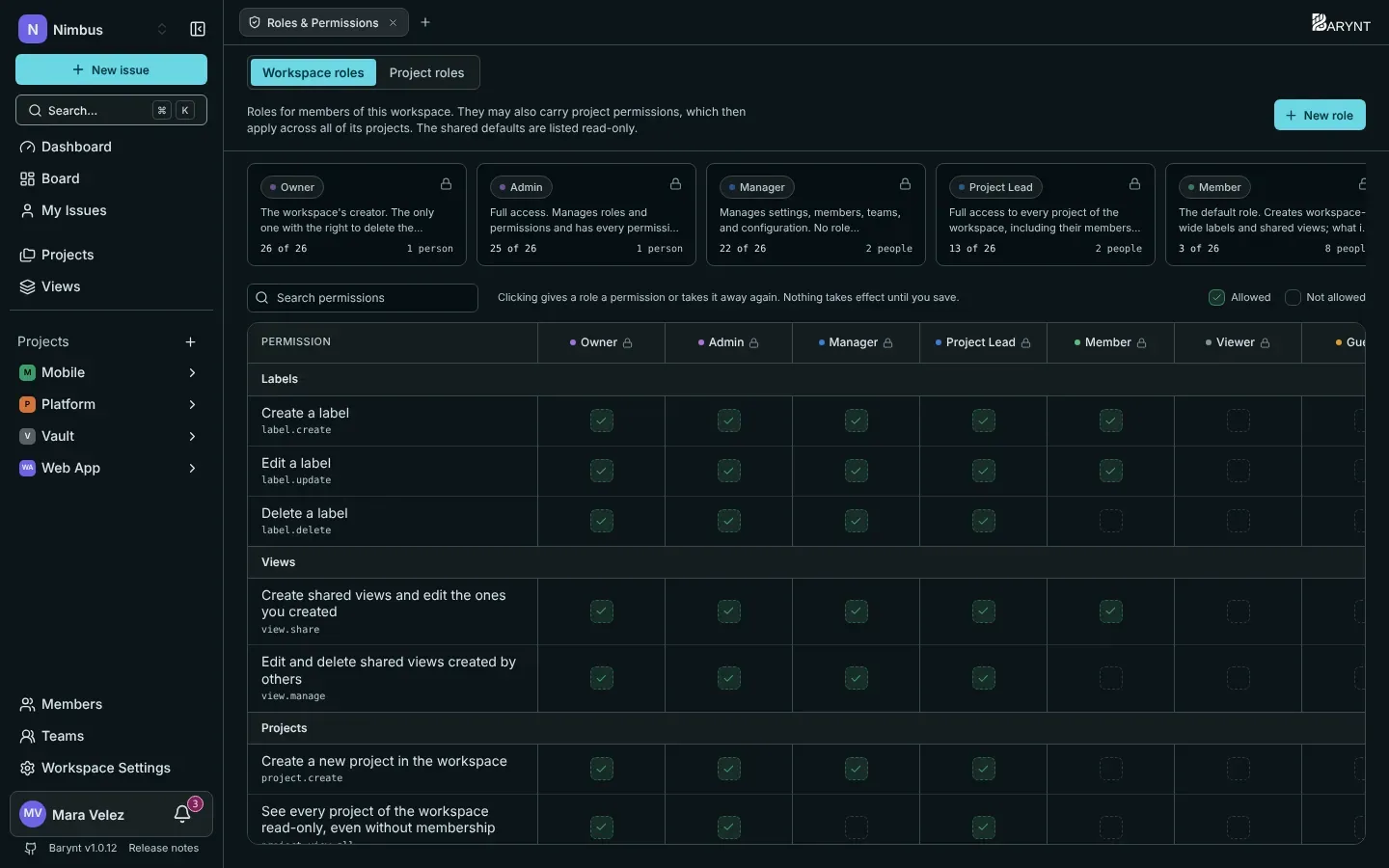
Barynt answers “who may do this?” with roles. A role is a named bundle of permissions, such as Member or Admin. You give people roles, and the roles decide the rest. This page explains the ideas first, then lists exactly what each ready-made role can do.
The idea in one picture
Think of an office building:
- Your workspace role is the key to the building. It says whether you can walk in, and what you may do in the shared parts: invite people, create projects, change settings.
- Your project role is the key to a room. It says what you may do inside that one project: create issues, edit them, delete them.
- The platform role is the key to the building’s machinery, the server itself. Only a few people have it.
You have at most one role at each level. Inside a project, your project role decides what you can do with issues and comments. Everywhere else, your workspace role decides.
Workspace roles
These decide what you may do in the workspace itself.
| Role | In plain words |
|---|---|
| Owner | The workspace’s creator. Can do everything, including deleting the workspace. Has full access to every project. |
| Admin | The same, except deleting the workspace. Manages roles and has full access to every project. |
| Manager | Runs the workspace day to day: settings, members, teams, webhooks and the audit log. Cannot manage roles and does not see projects they are not a member of. |
| Project Lead | Looks after the projects: creates them, sees and manages all of them, invites and removes people, manages labels and shared views. Cannot change workspace settings. |
| Member | The usual role. Creates labels and shared views. What they can do in a project depends on their project role. |
| Viewer | Read access. Joins projects as a reader. |
| Guest | Someone from outside, who sees only what they were explicitly invited to. |
Project roles
These decide what you may do inside one project.
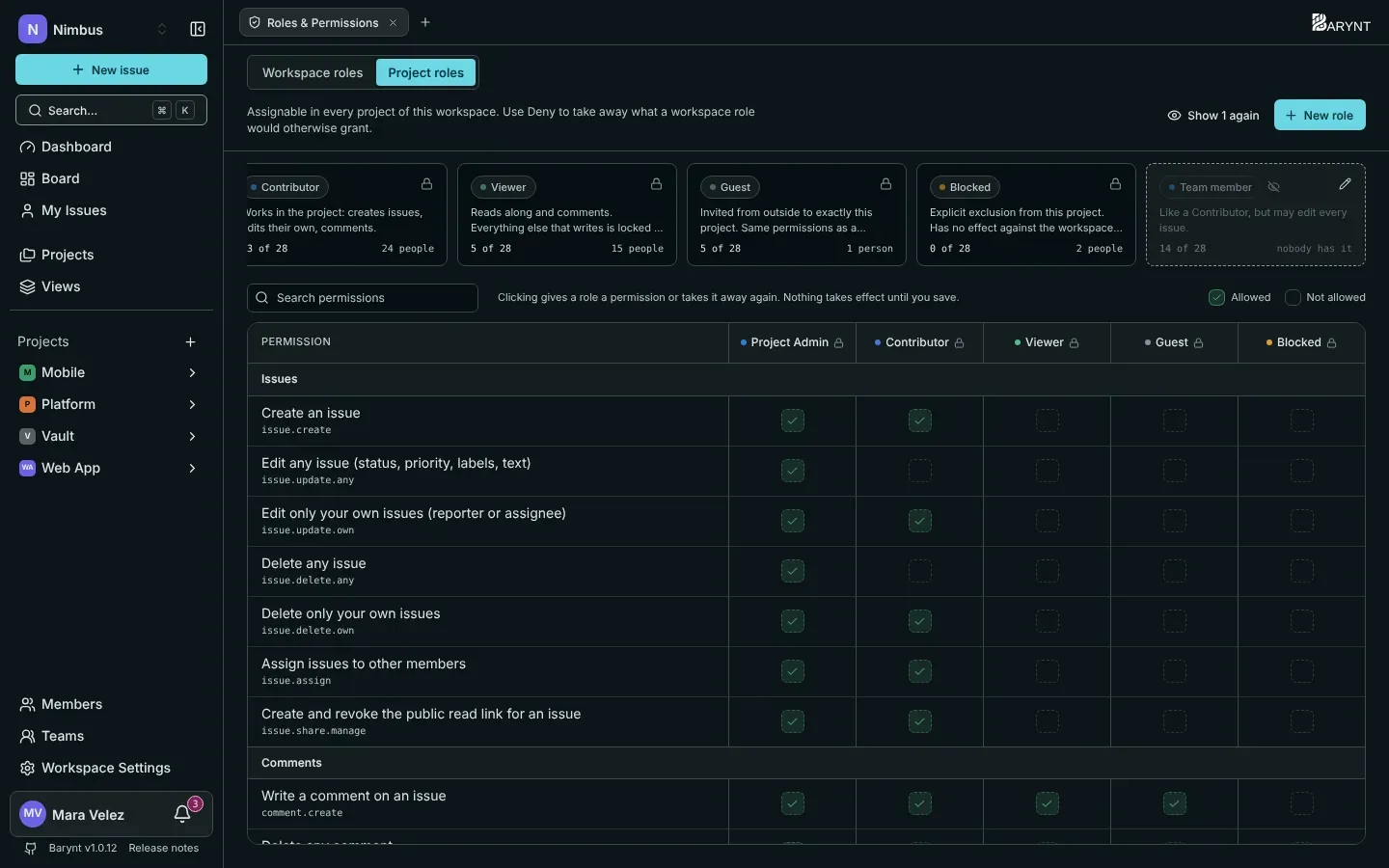
| Role | In plain words |
|---|---|
| Project Admin | Everything in the project: settings, members, roles, labels, views, and every issue and comment. |
| Contributor | The working role. Creates issues, edits and deletes their own (ones they created or are assigned to), assigns, shares, comments, creates labels and shared views. |
| Viewer | Reads along and comments. Everything that writes is locked. |
| Guest | The same as Viewer, for people invited from outside straight into this project. |
| Blocked | Locked out of the project. Use it to remove access without removing the person. |
What exactly can each role do?
In the workspace
| Permission | Owner | Admin | Manager | Project Lead | Member |
|---|---|---|---|---|---|
| Change name, color and address of the workspace | ✓ | ✓ | ✓ | ||
| Delete the workspace | ✓ | ||||
| Manage webhooks | ✓ | ✓ | ✓ | ||
| View the audit log | ✓ | ✓ | ✓ | ||
| Define roles | ✓ | ✓ | |||
| View, invite, remove members and change their roles | ✓ | ✓ | ✓ | ✓ | |
| Create projects | ✓ | ✓ | ✓ | ✓ | |
| See and manage every project without being a member | ✓ | ✓ | ✓ | ||
| See the dashboard numbers of the whole workspace | ✓ | ✓ | ✓ | ✓ | |
| Set the default dashboard layout | ✓ | ✓ | ✓ | ||
| Create, edit and delete teams, manage their members | ✓ | ✓ | ✓ | ||
| Create and edit labels | ✓ | ✓ | ✓ | ✓ | ✓ |
| Delete labels | ✓ | ✓ | ✓ | ✓ | |
| Create shared views | ✓ | ✓ | ✓ | ✓ | ✓ |
| Edit and delete views created by others | ✓ | ✓ | ✓ | ✓ |
In a project
| Permission | Project Admin | Contributor | Viewer / Guest |
|---|---|---|---|
| See the project, read issues | ✓ | ✓ | ✓ |
| Create issues | ✓ | ✓ | |
| Edit and delete own issues | ✓ | ✓ | |
| Edit and delete any issue | ✓ | ||
| Assign issues to others | ✓ | ✓ | |
| Create the public link of an issue | ✓ | ✓ | |
| Write comments, react | ✓ | ✓ | ✓ |
| Edit and delete own comments | ✓ | ✓ | ✓ |
| Edit and delete any comment | ✓ | ||
| Create and edit labels | ✓ | ✓ | |
| Delete labels | ✓ | ||
| Create shared views | ✓ | ✓ | |
| Edit and delete views created by others | ✓ | ||
| See the dashboard numbers of the whole project | ✓ | ||
| Set the project’s default dashboard layout | ✓ | ||
| Change project name, color and settings | ✓ | ||
| Delete the project | ✓ | ||
| Invite and remove members, change their roles | ✓ | ||
| Define project roles | ✓ | ||
| View the project’s activity | ✓ |
Who sees what, in short
- A public project has every workspace member in it.
- A private project only has the people added to it, plus workspace owners, admins and project leads, who can open every project.
- Nobody sees a project they are not in, apart from those roles. Search, boards, dashboards and the API all respect it.
- A workspace Guest or Viewer sees only the projects they belong to.
Changing someone’s role
- Workspace role: open Members in the sidebar and pick a new role in the Role column.
- Project role: open the project’s Members page, or Project settings → Members, and pick a new role there.
You can only hand out roles up to your own rank, and you can only change people below you. A Manager cannot make someone an Admin. This is also why the person who set up the workspace should stay Owner.
People are told when their role changes, see Inbox and notifications.
Building your own roles
The ready-made roles cover most teams. When they do not fit, make your own. Typical reasons: “Member, but without creating labels”, “Contributor who can edit every issue”, “Contractor who can comment but see only one project”.
- Open Roles and permissions: under Workspace settings for workspace roles and for project roles you want in every project, or in Project settings for roles that exist only in that project.
- Click New role, give it a name and a short description.
- In the editor, tick the permissions the role should have. A click on a box allows or removes a permission, and a search box filters the long list. The rank field sets where the role stands in the hierarchy.
- Click Save. Nothing takes effect until you do, and Barynt warns you if you leave with unsaved changes.
A few rules keep this safe:
- The ready-made roles are marked Shared and cannot be edited. They are the same for everybody. To change one, copy it into your own role.
- You can only grant permissions that you have. Boxes you cannot tick are greyed out.
- The rank decides who may hand the role out: only people of at least that rank can assign it, and you cannot give a role a higher rank than your own.
- A role can only be deleted when nobody holds it. Move its holders to another role first.
Teams and roles
A team can be given a role on a project. All its members then get that role there, in one step. You can still set an individual role for one person, which wins over the team’s.
Platform roles
On top of the two levels above, the server itself has three roles:
| Role | What it is for |
|---|---|
| Platform Admin | Looks after the server: accounts, workspaces, settings. Cannot read anyone’s issues. |
| Platform Support | May look inside any workspace to help with a problem. Cannot manage accounts. |
| Platform Member | A normal user. Everyone starts here. |
The first person to register on a fresh server becomes Platform Admin. See Platform administration.
Common setups
| You want… | Do this |
|---|---|
| A team where everyone edits everything | Create a custom project role from Contributor plus Edit any issue and assign it to the team on the project. |
| A confidential project | Make it private and add only the people who need it. |
| A client who can read and comment on one project | Invite them to that project as a Guest, see Members and invitations. |
| A stakeholder who follows along and comments, but changes nothing | Give them the project role Viewer. |
| Taking away access without deleting the account | Set their project role to Blocked, or remove them from the project. |