Projects
A project groups related work under one identifier, with its own board, numbers and people. Public for everyone in the workspace, or private for a chosen few.
A project is a bucket of related work: a product, a team’s backlog, a client, a campaign. It has its own issues, its own board and its own dashboard, and it can have its own circle of people.
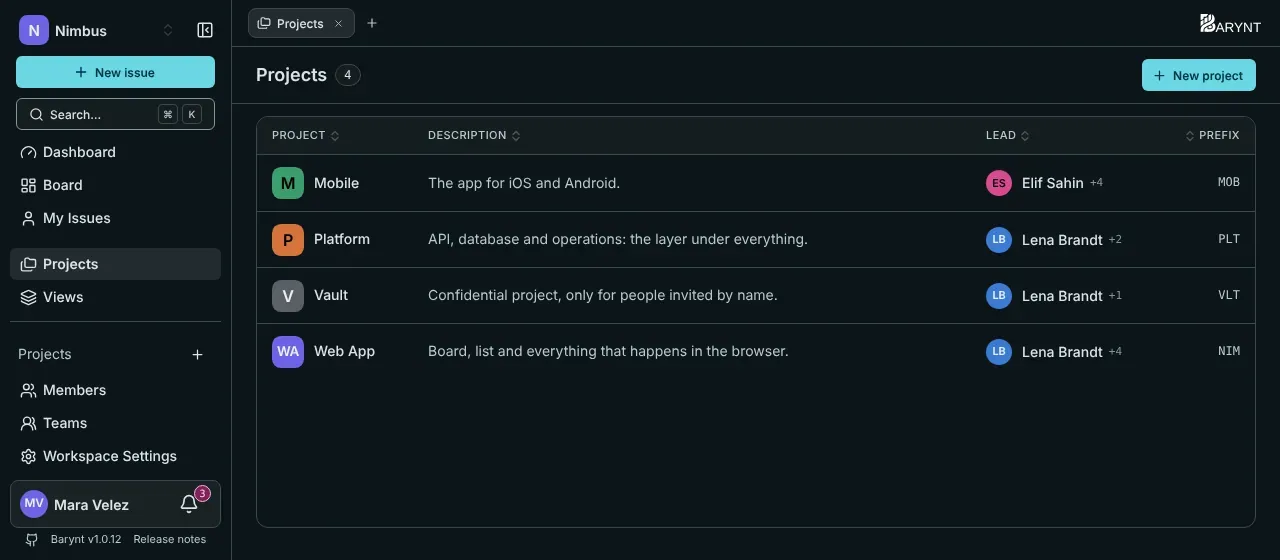
The project list
Click Projects in the sidebar for the list of every project you can see: name, a one-line description, who leads it and its identifier. A click on a row takes you in.
The lead is simply whoever holds the Project Admin role. The list shows the first one and a “+n” for the others.
Creating a project
Press N, or click New project, and fill in:
- Name and a description.
- Identifier: two to four letters that prefix every issue number, like
WEBforWEB-1,WEB-2. It cannot be used twice in a workspace. - Color (and later a picture): how the project is recognised in the sidebar and on tabs.
- Visibility: public or private, see below.
You become the project’s admin right away. The creation is recorded in the audit log.
Public or private?
| Public | Private | |
|---|---|---|
| Who is in | Every workspace member, automatically. New members are added when they join. | Only people added by hand. |
| Who can see it | All workspace members. | Members of the project, plus workspace owners, admins and project leads, who can open every project. |
| Use it for | Normal team work. | Anything confidential: HR, finance, security, a client under NDA. |
Changing a project from public to private takes access from nobody. Everyone already inside stays. Only new workspace members stop being added automatically. To remove somebody, do it explicitly under the project’s Members.
Working inside a project
Every project has its own entries in the sidebar, and the same set as tabs at the top:
- Dashboard: the numbers and charts of this project, see Dashboards.
- Board: the issues as columns by status, see Board and list.
- Issues: the same issues as a list.
- Members: who is in and with which role, see Project settings.
- Settings: name, color, visibility, labels, fields and more.
Next to them sit your saved views, see Views.
At the workspace level, Board and Issues in the sidebar show the issues of all your projects together, with the project named on each card. Handy for a lead who needs the whole picture.
Moving between projects
- Click the project in the sidebar. What that click opens (board, list, dashboard or your own start view) is your choice under Personal settings → Navigation.
- Press
[and]to go to the previous or next project, staying on the same view. - Press
⌘1to⌘9(Ctrl+1toCtrl+9) to jump to the first to ninth project in the sidebar.
Settings, members and removal
Name, description, color, identifier, visibility, which fields issues have, project-only labels and roles all live in the project’s settings. They are covered in Project settings.