Project settings
Everything you can adjust for one project: its details and visibility, who is in, labels, which fields issues have, and its activity log.
Open a project and click Settings (or the Project tab at the top of any settings page). The left-hand menu has seven entries. Most need the Project Admin role, see Roles and permissions.
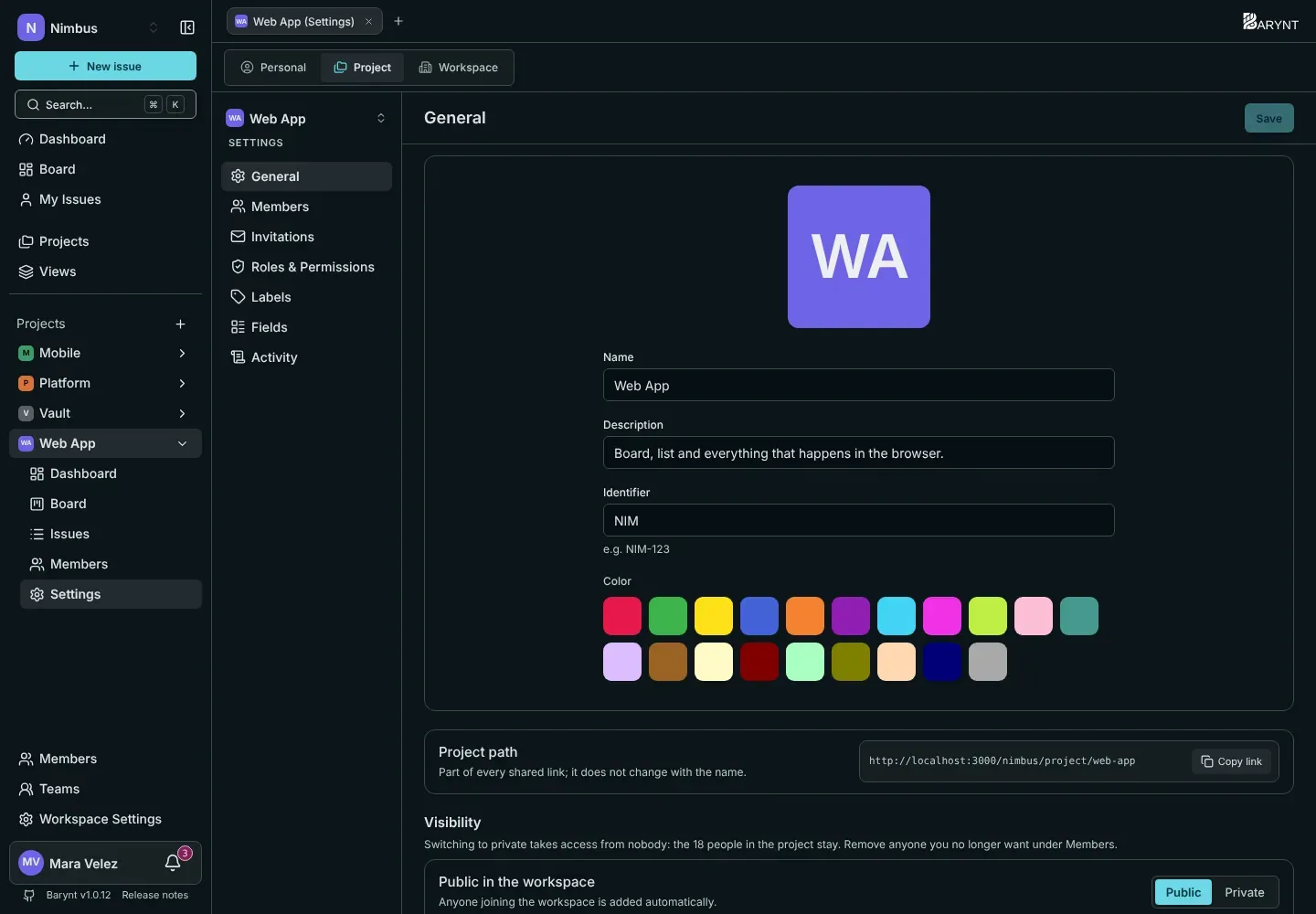
General
- Picture, name and color identify the project in the sidebar, on tabs and on the board. The description is one line for the overview.
- Identifier is the prefix of every issue number, like
NIMinNIM-12. Choose it carefully: it is part of the numbers people quote. - Project path is the part of the address that belongs to the project, like
/project/web-app. It does not change when you rename the project, so shared links keep working. - Visibility: Public (every workspace member is added automatically) or Private (only people added by hand). Switching to private takes access from nobody who is already in. Remove people you no longer want under Members.
At the bottom, the Danger zone deletes the project with all its issues, for good. Barynt tells you how many issues that is and asks you to confirm.
Members
Everybody who is in the project, with their role and status.
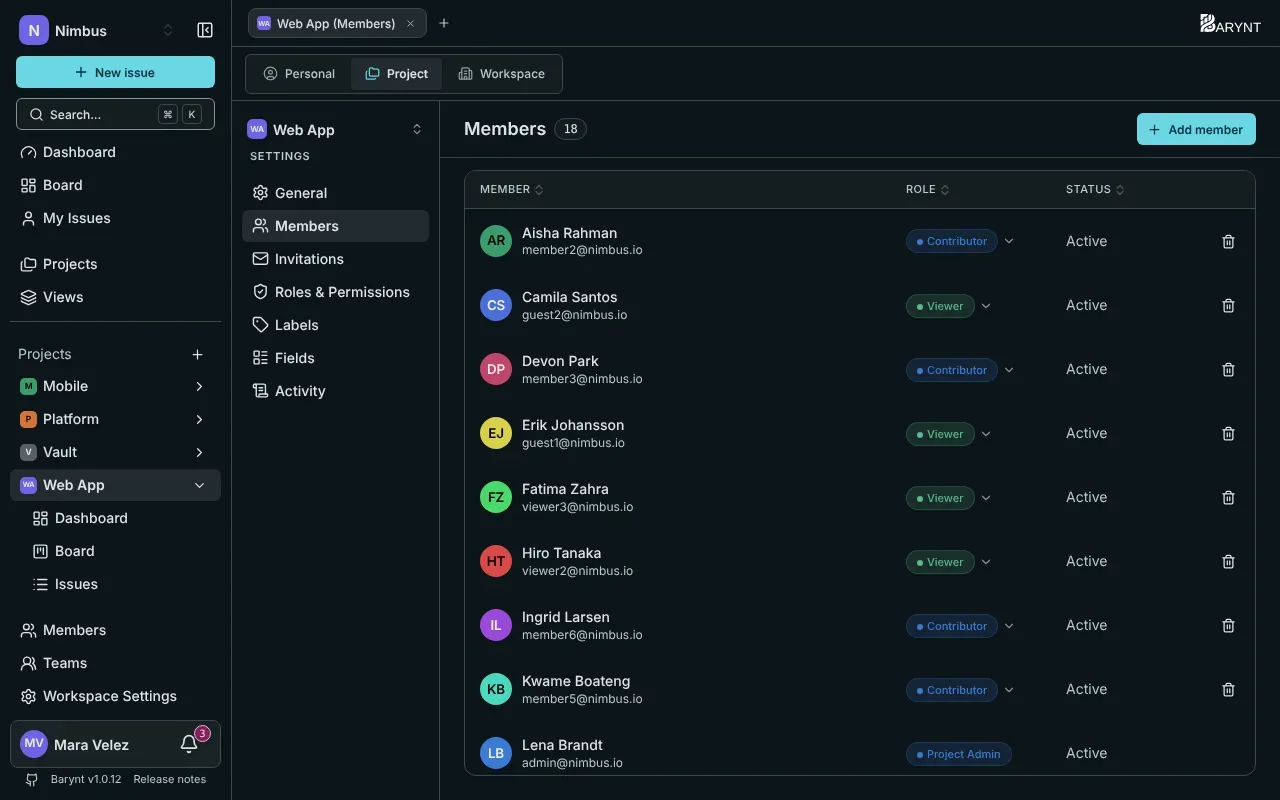
- Add member opens a dialog with two tabs: From workspace (pick existing members, with a search box) and By email (invite someone new, see Members and invitations).
- Change a person’s role with the dropdown on their row. A role marked inherited from the workspace is the starting value from their workspace role. One marked via team comes from a team. Set a role here to override it for that person.
- Revoke project role removes someone from the project. They stay in the workspace.
Invitations
Open invitations to this project, and the project’s invite link: pick a role (for people from outside, Guest) and how long it is valid, then generate the link.
Roles and permissions
The roles that exist only in this project, next to the shared defaults and the workspace’s project roles. Use it to create a role for a special case. How roles work is in Roles and permissions.
Labels
Labels group issues across status and priority. There are two kinds, shown on two tabs:
- Project labels belong to this project and exist only here. Create them with New label, pick a color, and see how many issues use each. Deleting one removes it from all issues of the project, for good.
- Workspace labels come from the workspace. Here you can hide the ones this project does not want, and show them again later.
Fields
Not every team wants every field. Switch them on and off for this project:
| Field | Default |
|---|---|
| Priority | on |
| Attachments | on |
| Labels | on |
| Relationships | on |
| Due date | off |
| Story points | off |
| Time estimate | off |
A switched-off field disappears from the issue page, the list, the board cards and the filter menu. Data already entered is kept, so you can switch it back on later. See Issues in detail.
Activity
A log of what happened in this project: issues created and deleted, status and assignee changes, members added and removed, role changes, visibility changes. It needs the permission View the audit log in the project. See Audit log.