Dashboards
Numbers and charts that answer: what is open, what is late, who is busy, and are we getting faster? Arrange them yourself.
A dashboard turns the issues of a project, or of the whole workspace, into a picture. It is made of widgets: small tiles with a number, a chart or a list. You decide which ones you want and where they sit.
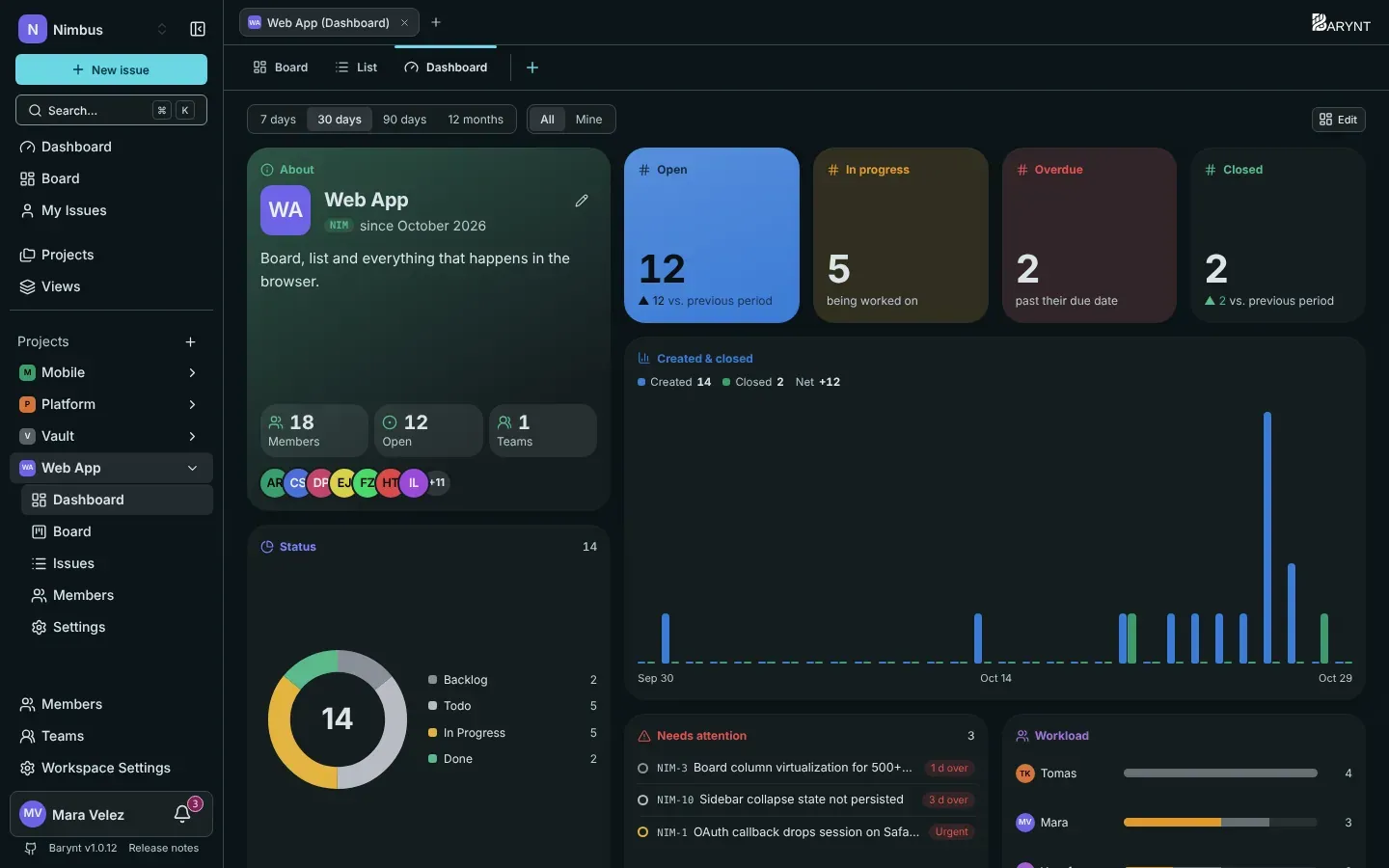
Where to find it
- Workspace dashboard: Dashboard at the top of the sidebar. It covers all projects you can see.
- Project dashboard: the Dashboard tab (or sidebar entry) inside a project.
Reading a dashboard
Two switches at the top control everything on the page:
- Time range: 7 days, 30 days, 90 days or 12 months. The trend arrows always compare with the period before.
- Scope: All shows the whole project or workspace, Mine only your own issues. Seeing All needs a permission (See the dashboard numbers of the whole project). Without it (the usual situation for team members), you see your own numbers, and the page says so.
What the standard widgets tell you
| Widget | The question it answers |
|---|---|
| About | What is this project, who is in, how many issues are open? |
| Open, In progress, Overdue, Closed | The four numbers a lead checks first, each with its trend against the previous period. |
| Status | How is the work spread across Backlog, Todo, In Progress, Done? |
| Created and closed | What came in and what got done, per day, week or month. Where the blue bars outrun the green, the backlog is growing. |
| Needs attention | What is at risk: overdue, urgent and unassigned, urgent, or in progress but untouched for two weeks. |
| Workload | Who has how much open, split into in progress and not yet started. |
| Progress bar | How much of a chosen set is done, for example everything labelled Release 2.4. |
| Projects | Every project with its open issues, one click away (workspace dashboard). |
More widgets
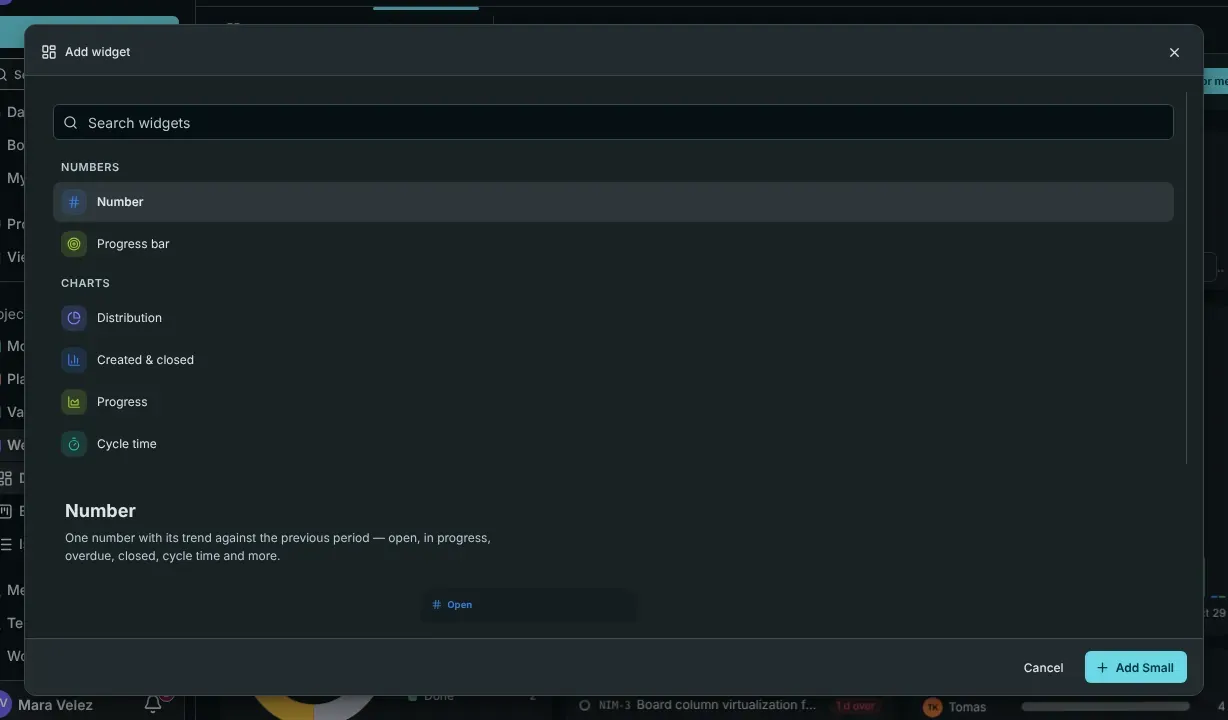
Click Edit, then Add widget to open the gallery. You can search it, and every entry shows a live preview with your own numbers.
| Group | Widgets |
|---|---|
| Numbers | Number (open, in progress, overdue, closed, cycle time and more), Progress bar |
| Charts | Distribution (ring or bars by status, priority, type, assignee, label or project), Created and closed, Progress (burn-up), Cycle time, Cumulative flow, Time in status, Workload, Matrix (two properties against each other, as a heat map), Age of open issues |
| Lists | Needs attention, Issue list (any filter), Activity |
| Overview | About, Members, Teams, Labels, Projects, Links, Shortcuts |
| Free-form | Note (goals, text, links), Embed (a website or an image), Custom widget |
Most widgets can have their own filter on top of the dashboard’s, so one tile can show “bugs only” while another shows everything.
Making it yours
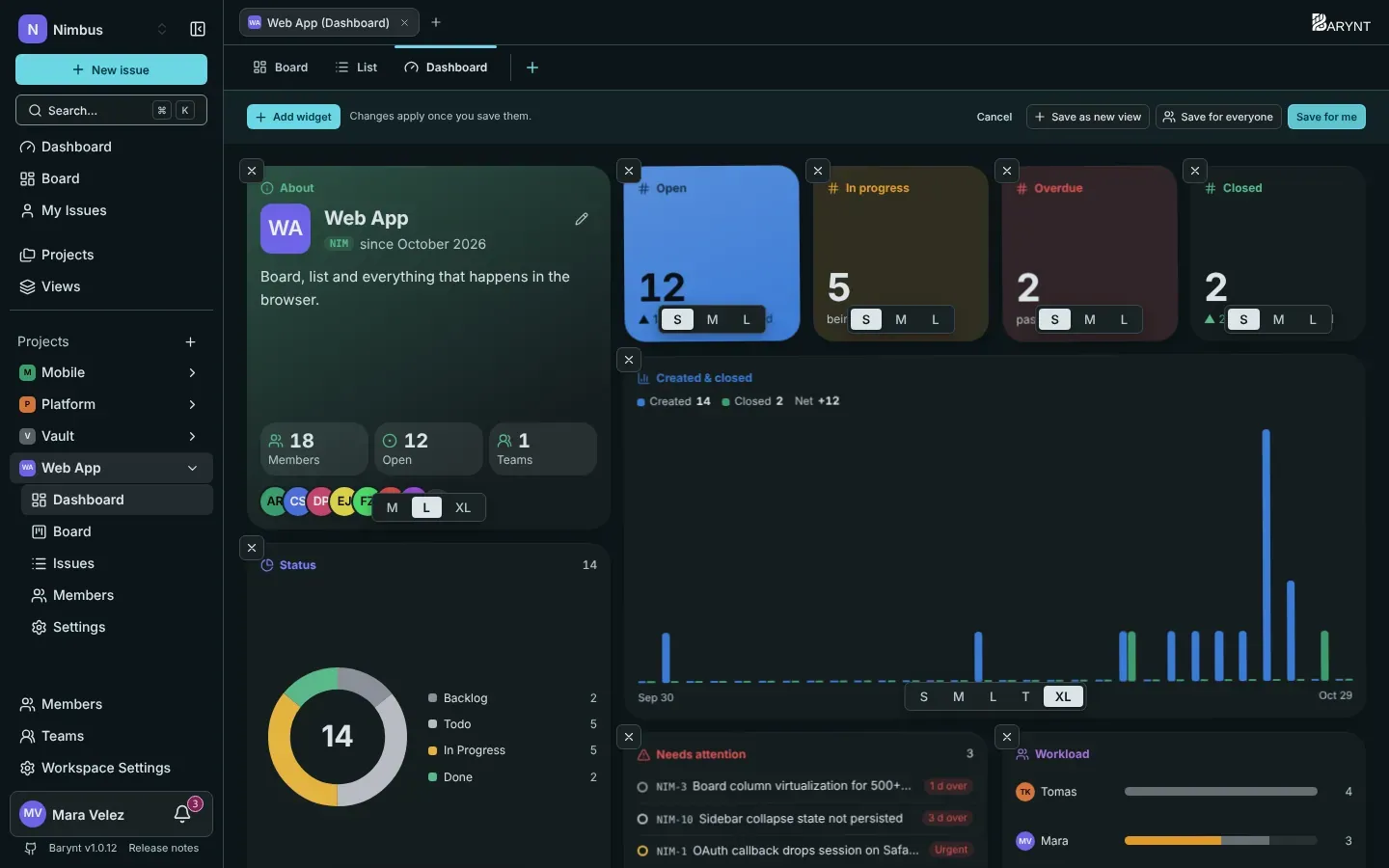
Click Edit at the top right. You can now:
- Drag a widget to a new place.
- Change its size with the small buttons beneath it: S, M, L, T (tall), XL or W (full width).
- Remove it with the × in its corner.
- Add more with Add widget.
When you are done, you choose how to save:
| Button | What it does |
|---|---|
| Save for me | Your own arrangement. Everyone else keeps the default. |
| Save for everyone | Makes this the default for everyone who has not changed their own. Needs the permission Set the default dashboard layout, which workspace owners, admins, managers and project admins have. |
| Save as new view | Keeps this dashboard, with its filter, as a view of its own, for example “Mobile team dashboard”. |
| Cancel | Goes back to the last saved state. |
Your own widgets
Cannot find what you need? Build a custom widget from building blocks: numbers, progress bars, distributions, time series, matrices and issue lists, each with its own filter. Start from a template (Sprint status is a popular one), name it, and tick Share in the workspace if everyone should find it in their gallery. Only you can change a widget you shared. Widgets already placed on dashboards stay when the custom one is deleted.
Good to know
- Cycle time is the time from creating an issue to closing it, shown as median, P75 and P95. Only closed issues count.
- A closed issue is one whose status became Done or Canceled. Reopening it takes it out of the closed numbers again.
- Everything on a dashboard respects permissions: you only ever see issues from projects you can see.